Licensing
AI Admin Panel is proprietary software with Free, Power User, and Web Host editions. You can complete setup with Free, start a paid-edition trial, or activate an existing key. A paid key is not required to use Free.
Choosing an edition during setup
Enter your licence key on the edition step and leave the field to validate it. A valid key selects its matching edition, including Web Host. An installer-provided key is checked automatically. Wait for validation before continuing. Validation checks the key; activation happens when you complete setup.
To choose a keyless edition, remove a manually entered key. Editing or removing it restores your previous choice, or asks you to choose if none was selected. Without a key, choose Free or a 14-day trial of Power User or Web Host.
Editions
The built-in edition matrix distinguishes these capabilities:
| Edition | Intended use | Included capabilities |
|---|---|---|
| Free | Trying it out on your own server | Template catalog, optional AI checks for Git and AI operations, monitoring, notifications, customer portal, audit log, local backup; 1 customer, 3 apps and 1 admin account |
| Power User | Your own company: no customers or resellers | Free capabilities, unlimited apps, custom domains, S3 backup, the app terminal and the assistant's commands and file edits inside an app; 1 admin account; no reseller hierarchy |
| Web Host | Managing others: customers and resellers | Power User capabilities plus organizations, RBAC, resource plans, projects, and service plans; unlimited admin accounts |
The setup wizard's edition cards use the same wording (AI-2705). Free and Power User do not show the customer pages (Customers, Resellers, Customer Plans, Resource Plans); customers already on record stay visible. The licence still counts customers as in the table below, and a licence on matrix 1.1 keeps its customer limit.
Limits
Each edition limits three counts:
| Count | What counts | Free | Power User | Web Host |
|---|---|---|---|---|
| Customers | Customer accounts | 1 | Unlimited | Unlimited |
| Apps | Deployed services. A template that runs several containers counts as one app. The built-in local AI engine is part of the panel and does not count | 3 | Unlimited | Unlimited |
| Admin accounts | Active panel and reseller staff who sign in to the panel. A deactivated admin does not count | 1 | 1 | Unlimited |
The panel takes the limits from your current licence, so a downgrade, a trial expiry or an activation applies at once, without a restart. The licence page shows each count against its limit, for example Customers: 1 of 1.
When a count is at its limit, the panel refuses to add one more and says which limit was reached and how to upgrade. The refusal is the same in the panel, the REST API and MCP tools: HTTP 403 with the code license_limit_reached and the limit, the current count and the edition. Nothing that already exists is stopped or removed. An installation that was already above a limit keeps running; it only cannot add more.
An expired or suspended paid licence gets the Free limits. Server operators can set CUSTOMER_TIER_LIMIT or SERVICE_TIER_LIMIT to lower a limit further. A value above the edition's limit has no effect: these variables can tighten a limit, never loosen it.
Open Settings → Security & License → License for your installation's status, edition, limits, expiry, and activation or re-validation actions. The licence banner at the top of the panel (trial ending, invalid key, re-bind needed, licence server unreachable) opens this page directly from its button.
To activate a paid key, paste it into Have a paid license key? Activate it now (during a trial) or into License Key and select Validate. The panel saves the key and binds it to this server at once. A key that is not yet bound to any server needs no further step. A key that is still bound to another server is saved, and the License page asks you to confirm the move (see Re-bind the licence after a move); the other server keeps the key until you confirm. A key the licence server does not accept is refused and not saved, so your current licence stays in place. A licence can carry a versioned edition definition; use the displayed entitlements for that installation. Unlimited edition counts still depend on server capacity and configured quotas. A licence stamped with an earlier edition matrix keeps that matrix's limits.
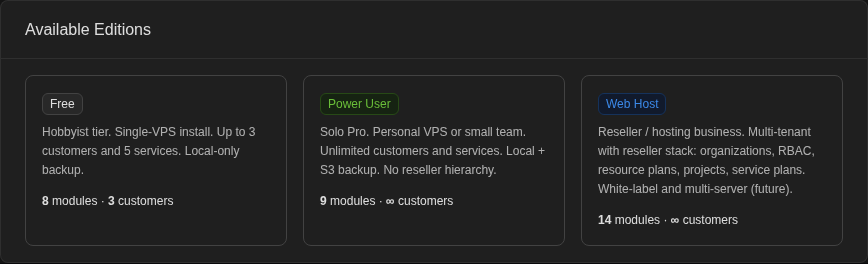
This crop shows only the edition comparison, excluding the installation's licence details. Features labelled future in the cards are not shipped capabilities.
Trial and expiry
The default trial lasts 14 days for the selected paid edition. A seven-day grace period follows, with reminders in the panel. After grace, the panel falls back to Free. Existing customers and apps are preserved; the Free limits (1 customer, 3 apps, 1 admin account) prevent new creations above them. Paid-key validation and connectivity failures have separate cached status and recovery handling: follow the status shown on the License tab rather than treating every validation error as a trial expiry.
Starting a trial needs the licence server. The server confirms the start time with a signed timestamp, so the trial runs on the licence server's clock, not the server's own. If the wizard says the trial could not start because the licence server did not answer, check that the server can make outbound HTTPS connections and try again, or choose Free. Each installation gets one trial: deleting settings or changing the system clock does not start a new one or add days.
When the licence server cannot be reached
The panel checks a paid licence with the licence server about 30 seconds after it starts, once a day, when you select Validate License, and whenever its last check is more than an hour old before an action that depends on the edition (creating a customer, deploying an app, adding an admin, or any change that needs a module). A check that cannot reach the server never blocks the action: the panel waits at most a few seconds, then carries on with the grace rules below and tries again a few minutes later.
- Grace: 14 days. If the server cannot be reached, a paid licence keeps working for 14 days after its last successful check. Admins see a warning on every page and on the License page: Licence server unreachable since 3 Nov 2026. Paid features stay on until 15 Nov 2026. The last successful check is stored in the database, so restarting the panel during an outage does not shorten the grace.
- After 14 days: Free. The panel then runs as Free until a check succeeds again. Nothing is deleted. Existing customers, apps and admin accounts keep running and stay readable; only new ones above the Free limits (1 customer, 3 apps, 1 admin account) are refused with
license_limit_reached, and changes that need a paid module are refused withedition_required. - Recovery is automatic. The first successful check restores the paid edition; select Validate License to check at once.
If your firewall blocks outbound HTTPS, allow the licence server so the grace period never runs out.
Signed answers
Every licence answer is signed by the licence server, and the panel checks the signature with a key built into the panel. An answer that is not signed, is signed by someone else, belongs to a different request or is more than five minutes off the panel's clock is treated like an unreachable server, so the grace period above applies. The License page then names the reason, for example licence server answer could not be verified: answer date is outside the allowed window (check the server clock). Keep the server clock in sync (NTP) and do not point LICENSE_SERVER_URL at anything other than the address the installer set.
Expired, suspended or revoked keys
When the licence server answers that a key is expired, suspended or revoked, the panel treats the installation exactly like Free from the next check, at most an hour later. There is no grace for a refused key. Free modules (template deploys, AI Deploy, AI Operations, monitoring, notifications, the audit log, backups and the customer portal) keep working; only paid modules are refused with edition_required. Renew the key or paste a new one on the License page to restore the paid edition.
Re-bind the licence after a move
A paid licence is bound to the server it was activated on, through a machine signature. The signature changes when you move to another VPS provider, restore a backup onto a new server or change the hostname.
When that happens, or when you paste a key that is still bound to another server, Settings → Security & License → License shows Machine signature changed — re-bind required. Your paid features stay active in the meantime. Click Re-bind to current machine to confirm the move and bind the licence to this server, then check that the License page shows your edition again before relying on paid features.
The Free edition never asks for a re-bind.
What each edition may change
Changes that need a module are refused when the edition does not include it, with a 403 edition_required answer that names the edition to upgrade to. Reading stays allowed, so nothing disappears after a downgrade. The same rule applies to the web panel, the REST API, both MCP servers and the panel chat:
| Change | Needs |
|---|---|
| Adding or removing a custom domain on an app | Power User |
| Renaming an app's own subdomain | Every edition |
Opening the terminal of an app, and the assistant running a command (exec_in_service) or editing a file (edit_service_file, and undoing it with restore_service_file) inside an app | Power User |
The assistant reading a file in an app (read_service_file) and reading its logs | Every edition |
| Instance branding (logo, colours, company name) | Web Host |
| Subscriptions and plan settings | Web Host |
The chat refuses such a change before it asks you to approve it. While a paid licence is expired or revoked, the panel works exactly like Free: changes in Free modules work, and changes that need a paid module are refused until the licence is renewed.
Turning a module off
Settings → System → Modules has a switch for each module. The switch and the licence are two separate answers:
- The licence decides what your edition includes. A change it leaves out is refused with
403 edition_requiredand an Upgrade link. A module card says "Not in your edition" when the licence does not include it; switching it on then has no effect until you upgrade. - The switch is your own choice, inside what the licence includes. A module you switch off is refused with
403 module_disabledon every edition, without an Upgrade link, and its menu items and buttons are hidden. Switch it back on and they return.
The App Console module covers the browser terminal of an app and the assistant running a command (exec_in_service) or editing a file (edit_service_file, restore_service_file) inside an app. Switched off:
- the service page shows no Terminal button and no Terminal in a Compose app's container rows; an old link to the terminal says the App Console is off,
POST /api/v1/services/:id/terminalanswers403 module_disabled,- the assistant and the admin MCP server refuse those three tools with
module_disabled: …before anything is queued for approval, - a terminal that is already open stops: the server no longer accepts its input and sends no more output.
Reading a file in an app (read_service_file) and its logs are not part of the App Console and stay available.
Some modules own a few routes only for changes: reading them stays open, so a page can still show what is there. Switched off, these modules refuse the changes and keep the reads, exactly as the licence does when it leaves them out:
| Module | Refused when switched off | Still readable |
|---|---|---|
| Domains | adding or removing a custom domain on an app (POST/DELETE /api/v1/services/:id/domains…, the manage_domains tool) | an app's domains; renaming its own subdomain stays available |
| Organizations | saving the instance branding (PUT /api/v1/branding) | the branding every page loads |
| Service Plans | creating or changing a subscription (/api/v1/subscriptions, create_subscription, update_subscription) and GitHub self-service per plan (PUT /api/v1/github/self-service/plans/:id, set_github_self_service) | the subscription list |
On those pages the change controls are greyed with "This feature is turned off. An admin can turn it on in Settings → Modules.", with no Upgrade link.
Features your edition does not include
The panel does not hide what your edition leaves out, but it does not nag either. There are no greyed-out entries in the sidebar. A feature that needs a higher edition carries one small lock where you meet it, and every lock leads to the same Upgrade page:
- Business tabs. Customers, Projects, Customer Plans, Resellers and Resource Plans are tabs of the Business page (see Customers). A tab your edition does not include keeps its name and shows a small lock; choosing it opens the Upgrade page at that feature. If none of the Business tabs is in your edition, the sidebar has no Business entry at all.
- Selling to customers. Free and Power User are for your own company, so Customers, Resellers, Customer Plans and Resource Plans are not shown there at all: not as Business tabs, not in search, not as Create Customer in the command palette, not as Add customer on the dashboard and not as the Host apps for my customers answer under What do you want to do first?. The Upgrade page says Selling to customers? Web Host adds customers, plans and resellers. An install that already has customers (from a trial, a downgrade or an older Power User licence) keeps its Customers tab. Everything else your edition leaves out, such as Projects, cloud backup or custom domains, stays on show with its lock.
- Pages opened by their address. A bookmark or link to a locked page (for example
/projects, or/customerson Free) still opens it, read-only: data you created during a trial or before a downgrade stays visible, and a panel at the top names the edition that includes the feature, with an Upgrade link. - Buttons (for example Save on the branding tab) do nothing when you select them except show a short note, also when you point at them or press Enter: Included in Web Host. Upgrade to use branding. The note has an Upgrade link. Press Escape to close it.
- Sections (the branding tab, custom domains on an app, the terminal drawer) show that panel in place of the controls.
- The terminal button on an app's page carries the lock on Free: Included in Power User. Upgrade to use the app terminal and AI edits. When the assistant proposes a command or a file edit on Free, the panel refuses it before any approval card and the step shows the same note with its Upgrade link.
- Buttons at a limit (New Customer, Deploy Service (and Deploy on a template), Invite user) are locked in the same way once a count is reached, for example 1 of 1 customers on Free. Upgrade for more. The License page shows a usage bar for each counted limit.
The Upgrade page
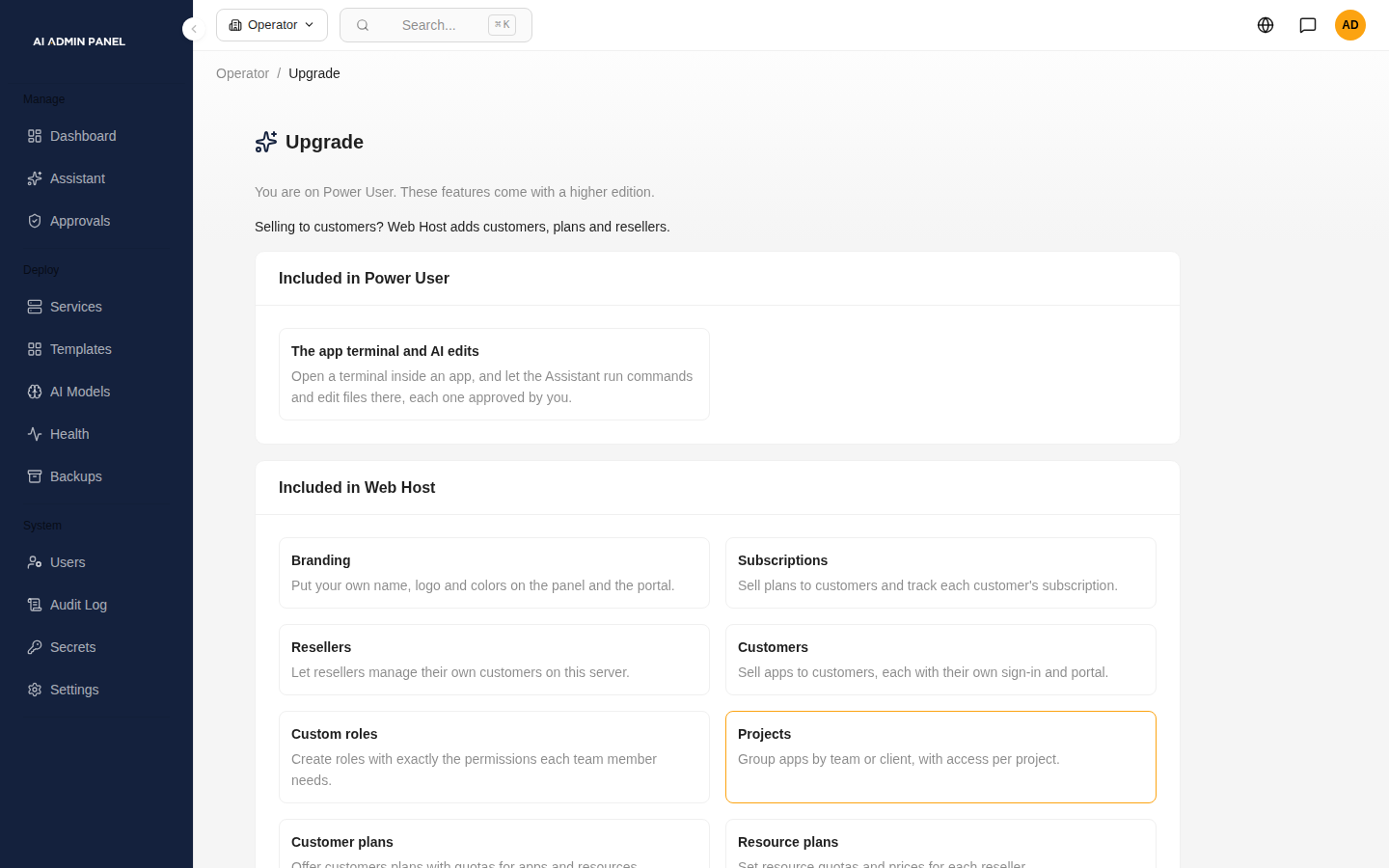
The Upgrade page (/upgrade) lists every feature your licence leaves out, grouped by the edition that adds it (Power User first, then Web Host), with one line on what each does. When you arrive from a lock, that feature is outlined. See editions and prices opens the upgrade address (below) in a new tab; I already have a license key opens Settings → Security & License → License. When nothing in the sidebar is locked, the same page is reachable from Settings → Security & License → License → What other editions add. Nothing you use today stops working when you change edition.
Which features are locked comes from the licence status the server reports, the same decision that refuses the change with 403 edition_required, so the panel and the server always agree. If a change is refused anyway (for example by an older panel tab), the panel shows the translated refusal, never a raw error.
Only the platform administrator sees which edition to buy, the Upgrade links and the Upgrade page's editions. Resellers, customers in the portal and other users see a neutral Not available on your plan. with no link.
The Upgrade button in the header
On Free and during a trial, the platform administrator sees a small outlined Upgrade button at the top right of every page, next to the user menu. During an active trial it also says how many days are left, for example Upgrade · 12 days left. It is always there but never a banner, a pop-up or a red warning. On a phone it shrinks to its arrow icon; point at it or read it with a screen reader for the full text.
The button opens the upgrade address (below) in a new tab, so a hosting provider can send its customers to its own buy page. It is hidden on a paid edition, and resellers, customers in the portal and other users never see it.
Setting the upgrade page
The header's Upgrade button and the Upgrade page's See editions and prices button open one address. By default it is https://aiadminpanel.com. A hosting provider can set its own buy page when it installs the panel:
UPGRADE_URL=https://example.com/pricing bash install.sh --unattended
# or
bash install.sh --unattended --upgrade-url https://example.com/pricing
The installer checks the address before it changes anything, writes it to the panel's .env and keeps it on later updates. Running the installer again with a new address replaces it; running it again without one keeps the old one.
On an installed panel, set UPGRADE_URL in the panel's environment file (the .env next to docker-compose.yml) and restart the panel:
UPGRADE_URL=https://example.com/pricing
The value must be an absolute https:// address. Plain http:// is accepted only for a local test page on a loopback address (localhost, 127.0.0.1 or [::1]), because elsewhere the page could be changed on the way to the admin. An empty or invalid value falls back to the default, so a typo never shows a broken link. The same address is returned as upgradeUrl by GET /api/v1/license/status and as upgrade_url in every 403 edition_required answer.
Hosting and external connections
The panel and deployed workloads run on infrastructure you control. Self-hosting does not mean that no data leaves the server. While a licence key is set, the licence check contacts our licence server after each start, once a day and when the status is more than an hour old. It sends the licence key and a fingerprint of the server (a one-way hash of its machine ID and host name). Activation also sends the panel's host name, the panel version, the version of the licence terms, and the name, e-mail address and company you entered in the setup wizard. A trial check sends only the server fingerprint. The anonymous usage, error and health data is on by default and can be switched off. Updates, cloud drive connections, a free temporary domain, and any AI, e-mail, backup, DNS or notification provider you set up also make outside connections. Privacy & Telemetry lists every one: when it happens, what it sends and whether you can switch it off. Choose providers and storage locations that fit your requirements.
Legal documents
The setup wizard requires EULA acceptance and contact consent. Settings → Legal provides the legal documents and acceptance record. Consult the published EULA, Privacy Policy, and Terms of Service for legal terms. This guide describes the product's edition controls; it does not replace those terms.