How Business fits together
The Business section has five tabs: Customers, Projects, Customer Plans, Resellers and Resource Plans. This page shows how they relate, in one picture and a few sentences each.
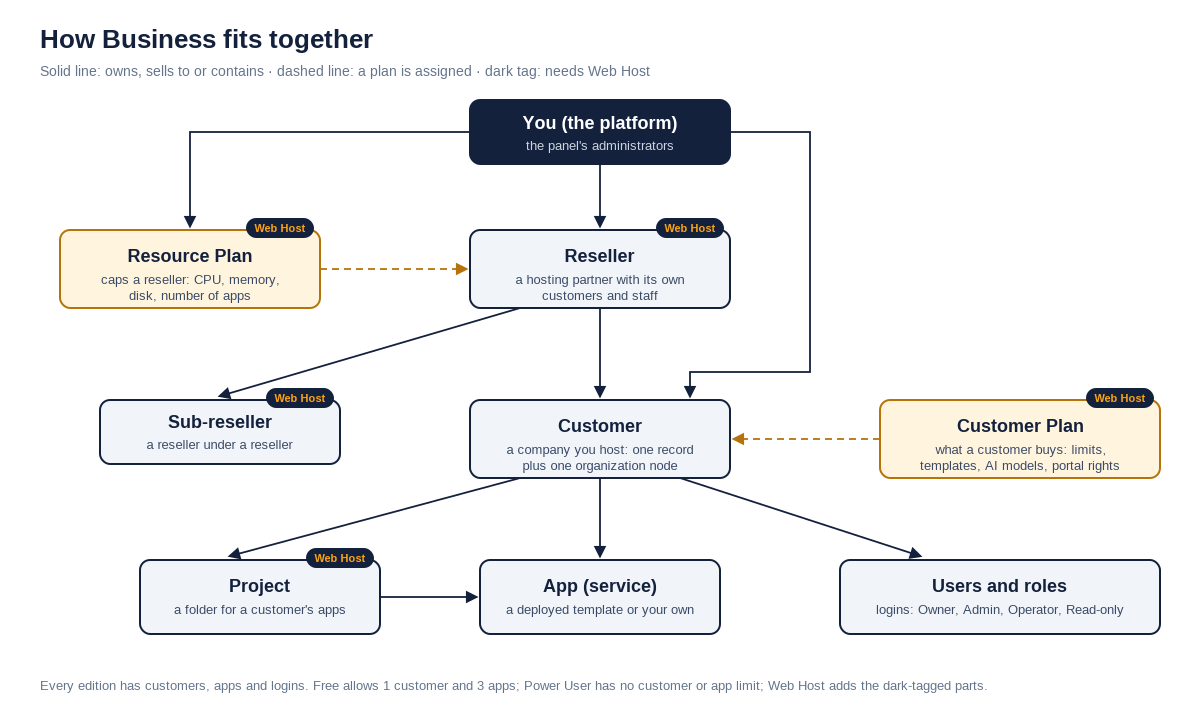
In short:
- A Resource Plan caps how much a reseller may use.
- A Customer Plan is the product a customer buys.
- A Project is a folder for apps.
The parts
You (the platform). The panel's administrators. You can host customers yourself, give resellers their own customers, or both.
Customer. A company or person you host. Each customer is one customer record (name, company, plan, status) linked to exactly one organization node, which holds its logins and apps. The panel always keeps the two together: creating a customer creates both, and you never manage the node on its own. See Customers.
Customer Plan. What a customer buys: how many apps, how much CPU, memory and disk, which templates and AI models are offered, and what the customer may do in the portal (for example view logs or restart an app). Each customer has one plan through its subscription. These limits are checked when an app is deployed. See Service Plans.
Reseller. A hosting partner that sells your panel's apps to its own customers. A reseller is an organization with its own staff (Owner, Admin, Operator, Read-only) and its own My Customers menu. A reseller can have sub-resellers, resellers under a reseller, up to five levels deep in total.
Resource Plan. The total allowance of a reseller organization, for example CPU, memory, disk and number of apps for everything it hosts. The panel enforces it for all of the reseller's customers together, on top of each customer's own plan; see Organization plan limits.
Project. A folder for apps inside one organization, usually a customer, for example "Website" and "Internal tools". Every organization (the panel itself, each reseller and each customer) has one automatic Default project, and every app sits in exactly one project of its own organization. The panel's own organization is called Platform; the panel creates it at its first start, before the setup wizard. An app deployed without a chosen project lands in the Default; when you delete a project, its apps move to the Default; the Default itself cannot be deleted. The Projects tab appears once a project other than a Default one exists; until then, use New project on the Apps page to create the first one. Project roles (Project-Admin, Project-Member, Project-Viewer) give a person access to one project only. See Roles & Permissions.
Users and roles. The logins. A customer's first login is its Owner; more logins can be Admin, Operator or Read-only. See Users and Roles.
Add a reseller
Go to Business → Resellers and choose New Reseller. The wizard has four steps:
- Organization Details: the reseller's name.
- Plan Assignment: an optional Resource Plan.
- Admin User: the email address and the first and last name of the reseller's first admin. This person becomes the reseller's Owner. The name goes onto their sign-in account, so their first sign-in does not stop to ask for it.
- Review & Activate: check the name, the plan (when you chose one) and the admin's email and name, then choose Create & Activate.
The panel creates the reseller organization, then the admin's login, the same way as Invite user on the Users page. The admin receives an email to set a password and then signs in to the reseller's own view. The login is reseller staff: it works only inside this reseller and its customers. Its breadcrumb and scope switcher start with the reseller's name, where yours read Operator. It counts toward your license's admin accounts.
If the login cannot be created, for example because the address already has a sign-in account, the wizard says so. The organization is kept. Correct the address and choose Create admin login, or invite the admin later on the Users page.
Which edition enables what
| Part | Free | Power User | Web Host |
|---|---|---|---|
| Customers and their logins | 1 customer | unlimited | unlimited |
| Apps | 3 | unlimited | unlimited |
| Customer Plans | — | — | yes |
| Projects | — | — | yes |
| Resellers and sub-resellers | — | — | yes |
| Resource Plans | — | — | yes |
On Free and Power User the panel does not show the Customers, Customer Plans, Resellers and Resource Plans tabs: those editions are for your own company. The customer limits above still apply to an install that already has customers (a trial, a downgrade or an older Power User licence), which keeps its Customers tab. Any other tab your edition does not include, such as Projects, shows a small lock and opens the Upgrade page. The source for this table is the edition matrix in Licensing.
Which one do I need?
- You host a few customers yourself: Customers, plus Customer Plans if you sell different sizes. Projects help when a customer has many apps.
- Partners sell for you: add a Reseller for each partner and give it a Resource Plan. The reseller then creates its own customers; they start on your default Customer Plan, and you manage the plans. A reseller cannot create or edit plans.
- Just for yourself: you do not need the Business section. Deploy apps from Services without a customer.