Customer Management
Customers group services, portal logins and a subscription. Administrators manage customers from Business → Customers (the first tab of Business in the sidebar; the address is still /customers); a customer portal view shows the customer of the organization the signed-in account's rights come from.
New to the Business section? How Business fits together shows how customers, plans, resellers and projects relate, in one diagram.
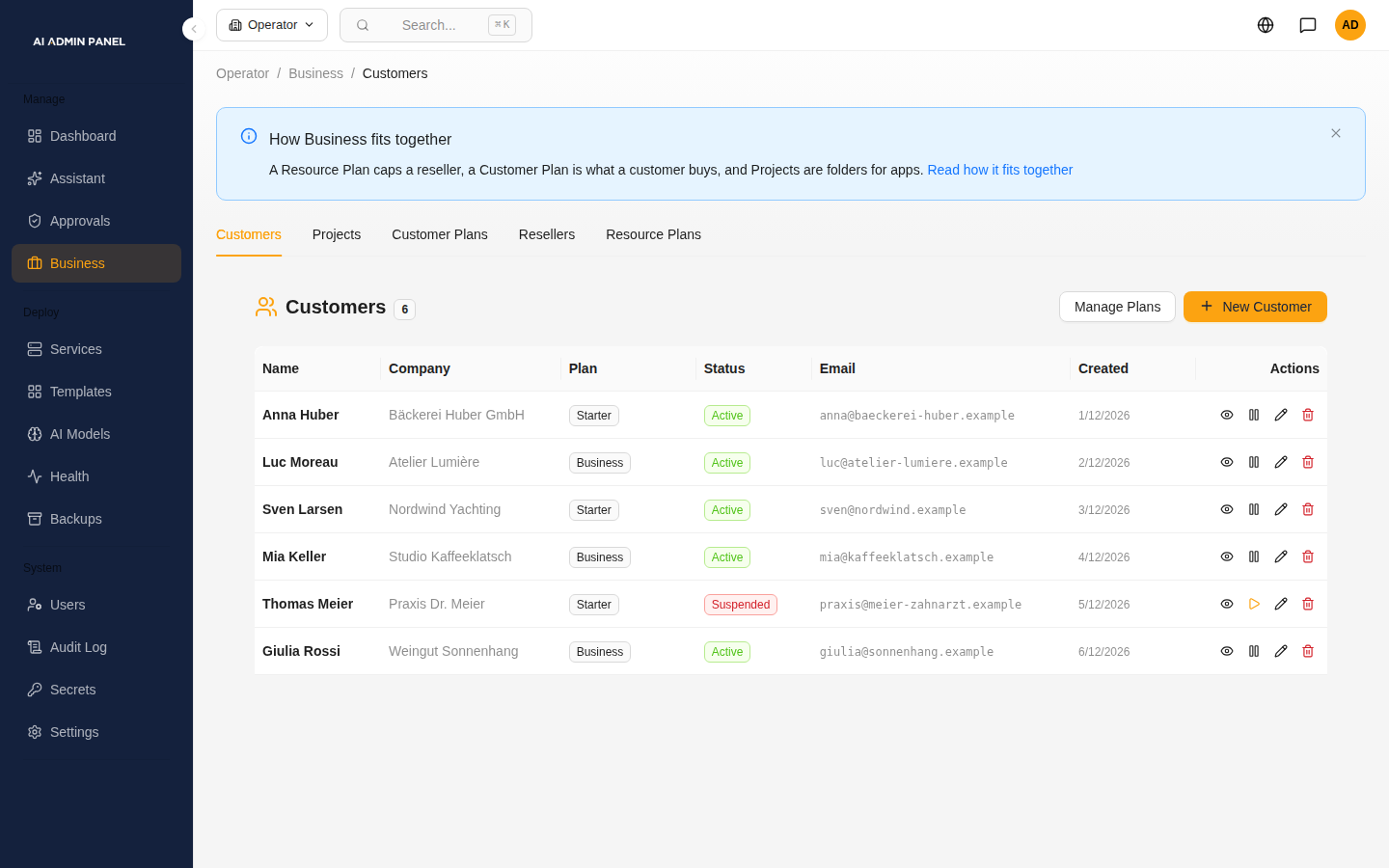
Customers, Projects, Customer Plans, Resellers and Resource Plans are tabs of one Business entry in the sidebar. Each tab keeps its own address (/customers, /organizations, /projects, /plans/customer, /plans/resource), so bookmarks and links still work, and /business opens the first tab you may use. The tabs follow daily use, so the reseller-level ones come last. A tab appears for the same people and setup choice as its sidebar entry did before: Projects for every choice, Customers and Customer Plans from For my clients, Resellers and Resource Plans from As a hosting business (see Navigation and persona), each only with the permission its page needs. Customers, Customer Plans, Resellers and Resource Plans need Web Host: on Free and Power User, which are for your own company, these tabs are not shown (an install that already has customers keeps its Customers tab). Any other tab your edition does not include, such as Projects, shows a small lock and opens the Upgrade page. Resellers, read-only users and project members keep their own menus; they see no Business tabs.
Create and invite
Choose New Customer, enter the first name, optional last name, contact email and plan, and save. The panel creates the customer and linked tenant organization, and provisions the login through Keycloak. If Keycloak can't create the login, nothing is saved and the form shows an error: try again once Keycloak is reachable. The dialog that follows shows the temporary password once; share it with the customer, or choose Send Welcome Email. Creating a customer sends no set-password email by itself. API callers ask for one with "sendInvite": true on POST /api/v1/customers; the answer's inviteSent says whether it went out. In the Go SDK, CreateCustomerRequest carries FirstName, LastName and SendInvite. A copy of the Go SDK from release 2.26.0 or earlier sent name instead, so every create and update through it failed with first name is required; replace that copy. Email delivery depends on Settings → Email.
A reseller has no plan to choose: the wizard says the account's default plan is used, and the customer is created on that plan under the reseller's own organization. The server decides both, not the form.
Open the customer detail page to review contact information, services, usage, subscription and logins. Use its invitation action for additional users. Each login joins the customer's organization. Check invitation delivery and use the resend action when needed. Edit the subscription to change the plan.
The detail page's Resource Usage card shows what the customer's apps hold against its plan: the number of apps and the CPU, memory and disk they reserve, counted the same way as the plan limits and the customer's own My plan page. An app that failed to deploy and holds nothing, or one being removed, is not counted. Bandwidth is measured and stays at 0 until a measurement exists.
The detail page's Backup Configuration card lists the backup schedules of the customer's services. "No backup schedules configured" appears only when the panel loaded them and found none. If they could not be loaded, the card says so and offers Retry; without permission to see them, it says that instead.
The login made when you create a customer is the customer's Owner: it can invite and manage the customer's team in the portal. When you invite more users you can pick a role (only one no stronger than your own); without one, the customer's first login becomes its Owner and later ones get the Customer role. The detail page's Users card lists the customer's logins with their roles and lets panel staff and the owning reseller change a role. See Who is a customer's Owner.
Create a customer while assigning one
Every assign to customer picker offers + New Customer: the deploy forms (template, Compose and Git, including optional AI checks) and the service page's Customer Assignment card. It opens the same create form in a dialog. After you save and close the one-time password, the new customer is selected in the picker and you stay on the page you were filling in. On the service page, picking the new customer assigns it like any other choice (with the usual confirmation when the service already has a customer). When there are no customers yet, the picker says No customers yet next to the same button. The button appears only for logins allowed to create customers.
A reseller's new customer is always created under the reseller's own organization; the server decides this, not the form. A reseller cannot list plans, so the form uses the account's default plan and says so.
Portal access
Portal actions depend on the plan's permissions and optional capabilities. Customers may view their service status, URLs and logs, or start, stop and restart services where permitted (see the customer's service page). Template deployment has its own checks. An administrator's view is broader; do not use an admin session to test customer access. See Service Plans, API Keys and Tenant MCP.
What a login may do also depends on its role on the customer's organization. An invited login without a role has the built-in Customer role and can use the whole portal. A read-only member (the User role) sees the dashboard and the service pages; the API Keys, MCP Tokens, AI and Export pages and the start, stop and restart buttons need more than that role. A member of a single project has no portal.
A customer can invite and manage their own team on the portal's Users page when their role allows it; see Customer users in the portal.
The portal's Contact support button reaches the customer's reseller, or the panel operator when there is no reseller contact. See Support contact.
View as customer
To see the portal exactly as a customer sees it, choose View as customer. It is a button at the top of the customer's detail page, next to Add Service, and an eye icon in the actions column of the Customers list. Both open the customer portal in a new browser tab, signed in as that customer, with a banner that names the customer while the session lasts. The same action is in the Operator scope menu in the header, when that menu is shown. It is refused, with a message, when the customer's login belongs to another organization first (see Upgrade). On a phone the Customers table scrolls sideways and keeps its actions column in view.
The customer dashboard
A customer lands on the portal dashboard. It works like the admin dashboard:
The headline says in one sentence whether everything works, for example "Everything is healthy — 4 apps running, nothing needs you" or "One thing needs you now". Under it are the customer's company and how many more apps their plan has room for.
Needs you comes first when something needs the customer. That is an app that stopped working, was stopped or does not fully work, or a plan at 80% or more of its app, CPU or memory limit. Urgent items open the card by themselves. Each item links to the app's page or to My plan; the dashboard itself never starts or stops anything from this list.
Your apps shows a tile per app with its logo and status. Open and Copy address appear when the plan allows viewing URLs. Start appears on a stopped app when both the plan and the login's role allow it. Stop and restart are on the app's own page.
Your plan shows the plan, the apps used and the memory share in one line, with the usage bars under Show details.
Recent activity lists when apps were added.
Connect my agent appears when the plan includes MCP. It creates an MCP token and shows how to connect Claude Code, Codex or another agent to the customer's own apps (see Tenant MCP).
Need help? stays on the page in every state, also when the dashboard could not load. Documentation opens the docs site and Contact support reaches the customer's support contact (see above).
Getting started is a short list for new customers (see First Steps). You switch it off for your customers in Settings → General; a reseller switches it for its own customers in My account → Your customers.
Under the headline, a login without two-factor sign-in sees a dismissible recommendation to turn it on, unless the customer's Getting started list is showing (it has its own two-factor step). Its Turn on two-factor button starts the setup and returns to the portal Profile page.
The customer's service page
A customer's service page (/portal/services/<id>) has the same layout as the operator's service page: the app's logo, name, kind and status at the top, one main button (Open app while it runs, Start while it is stopped), and a summary on the right that opens each topic in a side panel. On a tablet or phone the summary becomes a bar at the top and a row of tabs (a bottom tab bar on a phone). A side panel has its own address (?panel=connection, ?panel=logs and so on), so a customer can bookmark or share it.
The customer sees only what the plan and the login allow. Anything else is not shown at all, rather than shown greyed out:
| Part | Shown to the customer when |
|---|---|
| Open app, the address and Connect panel | the plan may view URLs |
| Start, Stop, Restart | the plan allows that action and the login may start and stop services |
| Logs | the plan may view logs and the login may view service logs |
| Backups | the plan may view backups and the login may view backups |
| Setup panel (the app's toolkit; OpenClaw browser and WhatsApp approval) | the app has a toolkit, or it is OpenClaw and the plan may restart it and the login may manage services |
| Configuration (size and technical details) | always, read only |
Metrics, the terminal, sign-in details, environment, size and domain editing, redeploying and removing the app are operator tools and never appear on the customer page. A link to one of those panels opens the page without it.
Who can open a customer's apps
Apps behind single sign-on open for a signed-in user who may view services on the customer's organization: every default login and every read-only member of that organization, and a member of a project for the apps that belong to that project. A membership on another organization, including the reseller above the customer, does not open them; platform administrators open any app. A membership row whose role does not include viewing services opens nothing. Suspended customers' apps stay closed to their members.
Suspend and reactivate
Suspension changes the customer status, attempts to disable its Keycloak logins, revokes panel sessions and queues stop jobs for running services. The session middleware also checks the customer's suspended state. These steps cross the database, identity provider and background worker: check the resulting login and service states, and investigate reported failures.
What stops while a customer is suspended
Suspension refuses every credential of the customer, not only the browser:
| The customer uses | What happens |
|---|---|
| The panel in a browser | Signed out; the session is refused (401) |
An API key or an organization key on /api/v1 | 403, "the customer is suspended", for every route including reads |
An MCP token on /mcp/tenant | 403, "the customer is suspended" |
| A new WebSocket connection (live logs, metrics, terminal) | Refused with 403 |
| A start, restart, redeploy or template deploy it queued before the suspension | Cancelled when the worker reaches it; it is not retried |
Keys and tokens are blocked, not revoked. After reactivation the same keys and tokens work again, so the customer does not have to create new ones. To end a key for good, revoke it.
A cancelled redeploy is listed as failed with the reason "customer suspended" in the service's deployment history, and the service keeps the status it had. A cancelled first deploy leaves the new service in error. Stop and remove jobs still run. A job that a platform operator or a reseller queued for the customer's service is not affected.
Platform staff and resellers keep working. The one exception is a key that belongs to the suspended customer's organization: it is refused whoever created it. A login that belongs to two customers is refused with its personal key while either customer is suspended.
If the panel cannot read the customer's status, keys and new WebSocket connections are refused with 500, MCP tokens with 403, and queued jobs are retried later. Browser sessions keep working in that case, so a database fault does not sign every customer out.
Not covered: a WebSocket connection that was already open at the moment of suspension stays open until it is closed, and the customer's AI gateway key is not blocked by suspension.
Reactivation enables the account and attempts to enable its logins. It does not automatically restart stopped services. Review and start the required services separately. Subscription status remains a separate entitlement decision.
Suspension holds: who suspended the customer
A customer is suspended while it has at least one hold. Each hold records who or what suspended the customer, why, and since when:
| Hold | Placed by | Lifted by |
|---|---|---|
| Operator | Suspend in the panel (POST /api/v1/customers/{id}/suspend, optional reason) | Reactivate in the panel |
| Billing | A billing integration such as WHMCS, when an invoice is overdue | The same integration, when the invoice is paid |
Lifting one hold never lifts another. A paid invoice does not end a suspension you placed for abuse, and your Reactivate does not end a billing system's suspension:
- Reactivate while a billing hold remains lifts your hold and answers
200withstillSuspended: true. The customer stays suspended. - Reactivate when only a billing hold is left answers
409held_by_billing. - When the last hold goes, the logins are enabled again. Services start again only when that last hold was a billing hold, and only the services that hold stopped. Your own reactivate still starts nothing.
The customer's page shows a Suspension holds card while any hold exists: Operator or Billing (with the integration's name), the reason and since when. Suspend asks for an optional reason (up to 500 characters) that the card then shows. After Reactivate, a message says when a billing hold keeps the customer suspended.
GET /api/v1/customers/{id} lists the same holds in suspensionHolds. Who placed an operator hold is shown to platform administrators only. Suspend and reactivate stay platform-only.
When you upgrade, every customer that is suspended at that moment gets an operator hold dated from its last change, so no suspension ends with the upgrade.
Delete with a recovery plan
Customer deletion is not a complete data-erasure workflow. It does not walk Docker services and volumes to provide a complete application-data removal procedure.
A customer that still owns a service cannot be deleted. The panel answers "This customer still owns services" and changes nothing. Delete each service, or reassign it to another customer, then delete the customer. The same applies while a service is being moved to the customer: wait for the move to finish.
When the delete goes ahead it happens in two parts:
- At once, as one step: the customer record, the logins that belong to this customer alone, their sessions and API keys, and the API keys of the customer's organization are removed from the panel. If any part fails, none of it happens and the customer is fully intact. From this moment those logins and keys no longer work in the panel.
- In the background, retried until done: the customer's sign-in accounts in Keycloak are deleted and its secrets namespace is removed. If Keycloak is down these jobs keep retrying; a job that finally gives up is written to the panel log and the audit log with the remaining Keycloak user IDs, for an operator to remove by hand.
A login that also belongs to another organization is not deleted. That includes the customer's first login. It keeps its account, its sessions and its Keycloak sign-in, and its membership of this customer is removed.
The customer's organization is kept but closed. Its record stays for the audit trail with the status terminated, and nothing can join it: no new user, no invite, no role or project assignment.
The delete is refused with nothing changed if the panel cannot read what it needs, cannot reach Keycloak to look the accounts up, or cannot queue the background jobs. Try again once the service is back. If two Keycloak accounts share one of the customer's email addresses, remove the duplicate in Keycloak first; retrying does not help.
A deleted customer's email address can be used again once the background job has removed its Keycloak account, normally within seconds. Until then, creating a customer, inviting a user or adding an organization user with that address is refused with "This email address cannot be used for a new login": the panel never gives a new login an existing sign-in account, because that account would keep its old password. The same message appears for any address that already has a Keycloak account, whoever it belongs to. If an address stays blocked, an account for it is still in Keycloak and an administrator has to remove it there. Not removed by a delete: the customer's AI gateway key and its Keycloak group.
If Keycloak is reachable for that check but fails while the account is being created, the customer is not created either: nothing is saved. Try again once Keycloak works.
Before deleting, inventory services, volumes, backups, exports and external accounts. Preserve any required recovery material, handle service removal first, and verify each cleanup result. Treat deletion as destructive; the panel does not provide an undo action or a comprehensive erasure report.
The v2.12.8 customer UI does not provide the previously described complete data export. Arrange application-specific exports and your retention/erasure process with the hosting administrator. Audit records are operational evidence, not a certification that every copy of customer data was removed.