Configuration
Complete the setup wizard, then use Settings for routine changes. Configure AI providers, email, DNS, licence activation, and updates in the panel. The installer creates the underlying Docker Compose stack and identity-provider configuration.
Installation files and advanced settings
A standard installation uses /opt/aiadminpanel/docker-compose.yml, with host settings in /opt/aiadminpanel/.env and persistent secret files under /opt/aiadminpanel/secrets/. A GPU host may also have a Compose override generated by the installer. Preserve these files together when backing up the installation.
The production stack includes the panel, PostgreSQL, Valkey, Traefik, Keycloak, OpenBao, its audit-log rotation sidecar, Ollama, and LiteLLM. The panel image is ghcr.io/aiadminpanel/ai-admin-panel:${PANEL_VERSION:-latest}. latest is the released channel; it does not mean an unreleased build from main.
The .env file supplies Compose substitutions; adding an arbitrary variable there does not automatically pass it into a container. These are supported examples, not an exhaustive replacement for the installed Compose file:
| Variable | Purpose |
|---|---|
PANEL_DOMAIN | Base hostname chosen during installation |
PANEL_VERSION | Panel image tag; defaults to latest |
ACME_EMAIL | Certificate notification email |
TLS_MODE | Installer choice: letsencrypt or cloudflare |
CERT_RESOLVER | Router certificate resolver; the installer sets letsencrypt-dns for Cloudflare mode |
CF_DNS_API_TOKEN | Cloudflare DNS token; supply privately, with no shared default |
GOMEMLIMIT | Optional Go soft memory budget; defaults to off, not 0 |
SECRETS_BACKEND | openbao by default; file selects legacy encrypted-column storage |
BAO_ADDR | Internal OpenBao address; normally http://openbao:8200 |
OPENBAO_VERSION | Bundled OpenBao image tag; 2.5.5 in this baseline |
LITELLM_MASTER_KEY | Per-install gateway key generated by the installer; required by Compose |
After changing a Compose environment setting, recreate the affected service from the installation directory; a restart alone does not load new container environment values. For a panel-only setting:
cd /opt/aiadminpanel
docker compose up -d --no-deps --force-recreate panel
This briefly interrupts panel access. Changes to routing, authentication, database, or secret settings can affect multiple services; back up the existing configuration and plan those changes before applying them.
Authentication
Keycloak is the identity provider. The installer imports the aiadminpanel realm, configures the panel-backend OIDC client, and creates the panel administrator admin@{PANEL_DOMAIN} with a generated password. See Installation for the first-login path and the separate Keycloak management-console account.
The production panel uses OIDC_DISCOVERY_URL (defaulting to Keycloak's internal realm discovery endpoint), OIDC_CLIENT_ID, OIDC_CLIENT_SECRET, and OIDC_REDIRECT_URI (normally https://{PANEL_DOMAIN}/auth/callback). Changing a hostname requires matching Keycloak redirect settings and DNS; editing only the panel URL is insufficient.
Roles, permissions, edition, and organization scope determine which actions are available. A sidebar choice does not grant permission. Use the panel's customer and user management flows when adding people so identity and panel membership stay aligned.
Navigation and persona
The wizard asks how you will use the panel: Just for me, For my clients, or As a hosting business. Free and Power User use this choice to simplify navigation. Web Host exposes the reseller navigation. Advanced view in the user menu reveals navigation available to your edition and permissions; it does not upgrade them.
AI providers
Use the wizard's AI step or Settings → AI → AI Providers to select a provider, enter its key privately, select a model, and test the connection. The model picker offers a curated list and an Enter a custom model option. Provider availability and model access depend on the configured provider account.
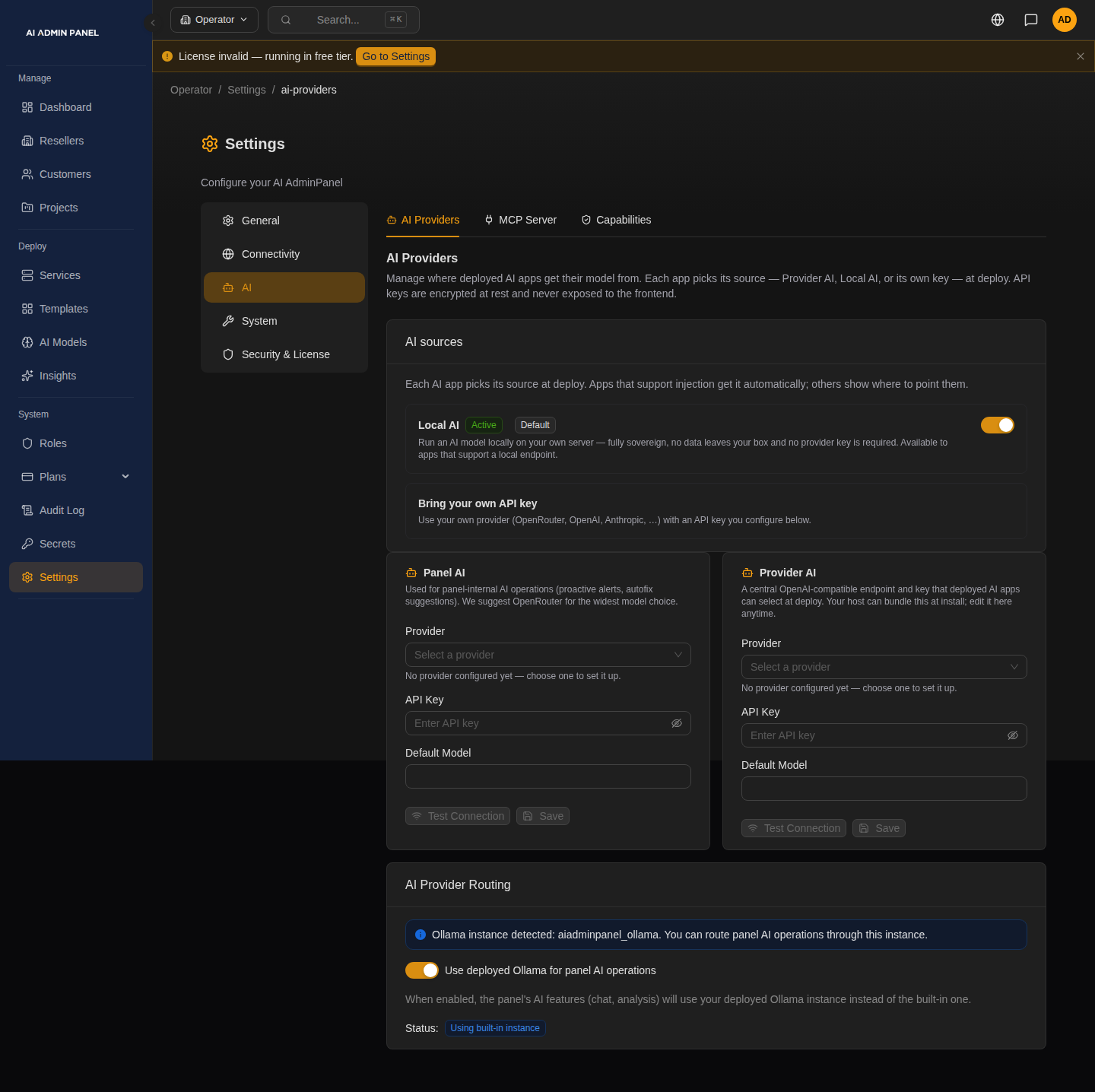
This example shows unconfigured provider forms. Panel AI serves the panel's own operations; Provider AI supplies a source that deployed apps can select. The screenshot does not show a successful connection test or a saved key.
Hosting providers can seed Provider AI on first boot with AAP_PROVIDER_AI_API_KEY, AAP_PROVIDER_AI_BASE_URL, AAP_PROVIDER_AI_MODEL, and AAP_PROVIDER_AI_PROVIDER_TYPE. The panel stores that configuration for later editing in Settings. Do not include keys in screenshots, examples, or support logs. See How AI Works for Panel AI versus the sources used by deployed apps.
DNS and certificates
For a domain you own, point both the panel hostname and its wildcard subdomain at the server before installation. The default HTTP-01 certificate challenge needs inbound port 80; HTTPS needs port 443. Traefik routing and certificate resolvers are configured in the installed Compose file.
DNS-01 Certificates (Cloudflare)
Choose TLS_MODE=cloudflare at installation and supply CF_DNS_API_TOKEN privately with DNS edit permission for the intended zone. The installer sets CERT_RESOLVER=letsencrypt-dns, selecting the DNS-01 resolver for panel and login routes. A token alone does not switch the router's resolver. DNS-01 does not need inbound port 80 for certificate validation; HTTPS still needs port 443.
Cloudflare record automation and certificate validation are separate concerns. Without record automation, a wildcard record can cover service subdomains. Confirm the final service URL opens; a deployed container alone does not prove DNS or TLS.
Temporary domains
When the installer claims a temporary domain, its claim token is stored in /opt/aiadminpanel/secrets/managed_domain_token and mounted as a Compose secret. Keep that file with the installation. Use the wizard or Settings → DNS & Domains to verify your email and monitor renewal. See Keeping your free domain for lease and recovery details.
Secrets and recovery
The default OpenBao backend stores managed secrets; some configuration also lives in the database and installation files. Keeping only a PostgreSQL dump is not a complete recovery plan. Include OpenBao data, its unseal material, volumes, and host configuration using the procedures in Backup and Restore and the repository's docs/runbooks/openbao.md. Restrict access to backups as you would to the running server.