Template Deployment
Open Deploy → Templates (panel staff only; a reseller's staff deploy with Deploy your own app), search the catalog or pick a category chip, and select a card. The side panel that opens says what the app needs (with a tick or a warning per line), what you get and the first steps after deploying; Deploy at its foot opens the deploy page. See the catalog overview.
Configure the service
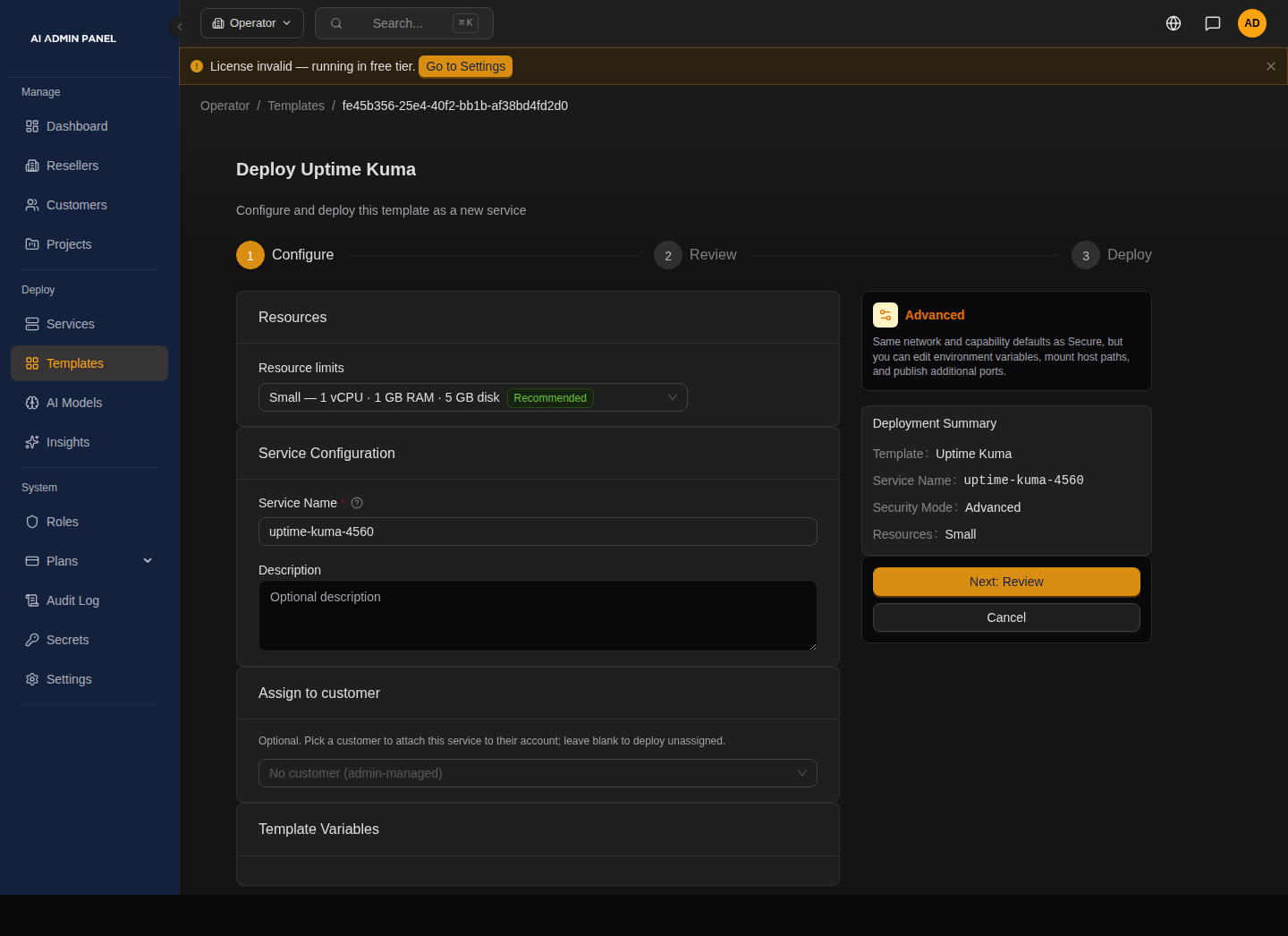
Everything is on one page; there is no separate review step. The app you picked heads the page with a Change button back to the catalog. Then, from top to bottom:
- Assign to customer: first, because the customer decides who sees the app and which AI it may use. Leave it empty to deploy for your own team. Below it the page says it picked the rest for you; change anything you like.
- Name: the service name. The line under the field shows the address it becomes (
https://<name>.<app domain>). When a service with that name already exists the field says so and offers the next free name (for example Use flows-2), and Deploy stays disabled until the name is free. - Needed from you: required settings that have no default, so nothing could be picked for them (an admin email, for example). Only shown when the template has some.
- Who can open it: a statement, not a choice, of what the new app's address will allow. Every app is private at first: only people signed in to the panel can open it until you click Make public on the service page (see below and App Access). For Gitea the statement adds that you set up the admin account first; apps whose template turns on panel sign-on (Hermes, IronClaw) stay private. RustFS is public from the start: every S3 request must be signed with its generated keys, and S3 clients cannot sign in to the panel.
- AI source (AI templates only): picked for you and labelled Picked for you with the reason. The rule: Provider AI when it is available (for a customer, when they have their own AI key for deployments or metered AI on their plan; the server uses their own key first), otherwise Local AI when it is switched on, otherwise "Bring your own key". Once you pick a source yourself the label goes away and the page leaves your choice alone. The template's own API key fields sit in a folded API keys line under the selector.
- Advanced options (one folded line that shows the current size, version and security mode): Size (the resource preset; presets below the template's minimum are unavailable, and Deploy stays disabled while the server cannot meet the minimum), Version, Security mode, Settings (the template's other visible variables; schema types
string,integer,boolean,passwordandselect; a blank password is not generated for you, generated secrets use the template's explicit system tokens) and Description. A template that declares a security mode offers the mode picker; one that sets none deploys in Advanced mode, and the section says so instead of showing a picker. If you press Deploy while a field inside is missing or invalid, the line opens and the cursor goes to that field.
The Summary beside the form says the deploy in one sentence ("Deploy n8n as flows for Anna Berger", or "No customer: only your team sees it"), then lists address, access, AI source, size and security mode, and what happens after Deploy. It holds the Deploy button and says why it is disabled. On a phone it becomes a bar at the bottom of the screen. After Deploy the panel opens the service page, which shows the progress.
When an AI template has no AI source left to offer (for example a customer who has neither metered AI nor their own key, with Local AI switched off), the AI section lists three concrete fixes instead of a dead end: Paste a key (selects "Bring your own key" and puts the cursor in the key field), Open AI models (switch on Local AI) and Open AI settings (set up Provider AI), or Open customer to turn on AI for that customer. For a template whose app cannot start without a model, Deploy stays disabled until it has one (with "Bring your own key", until a key is typed). Provider AI is never offered for a customer with neither metered AI nor their own key: the operator's key never goes into a customer's app (see How AI works). The key entered in the setup wizard belongs to the panel's own assistant and does not make Provider AI available.
Typing your own provider key into one of the template's key fields selects "Bring your own key" for you, and a note under the selector says so: "You entered your own key, so this app will use it." This matters because an app deployed with Local AI or Provider AI starts on that source and leaves a typed key unused. If you want the other source after all, select it again; the page then leaves your choice alone while you keep typing. Emptying the key fields does not change the selection. The switch happens only on this page: an API or MCP deploy uses the aiSource it sends (see Templates API).
Choosing Local AI for an app that needs a model name is refused (409 local_ai_model_unavailable) while the bundled Ollama has no model installed: download one on the AI Models page first. Automatic injection requires an aiInjection mapping; otherwise configure the application itself. See How AI works. OpenClaw deployments require the separate device-authentication warning.
Resources and deployment
Template minimum requirements are minResources.cpuCores and minResources.memoryMB. The resource picker offers host-aware presets and custom CPU, memory and disk values. The preset marked Recommended, which is also the one selected when the page opens, is the smallest preset that meets the template's minimum and fits the server. Presets below the minimum are disabled and marked "Below this template's minimum"; Custom values below it show an error and you cannot continue until they are raised. Host-capacity warnings on Custom values remain advisory.
The server applies the same rule to every caller. A deployment whose CPU or memory limit is below the template's minimum is refused, and one sent without limits runs with the minimum as its limits. On a server with fewer CPU cores than the template's minimum, the CPU floor is the server's core count instead, because Docker cannot give a container more cores than the server has.
The server also checks that it has room for the app before anything is created, and the catalog and this page show the same check before you click Deploy: a card is tagged Server too small or Slow on this server, and the deploy page names each requirement the server misses, with the numbers. Fewer CPU cores than the template's minimum is only a warning: the app is deployed and runs slowly, most of all while it starts and answers. A template whose minimum memory is larger than the server's memory is refused. So is one whose minimum memory is more than the server has free right now, less 512 MB kept free for the panel itself; the message says how much memory is free and how much the app needs. Stop or remove an app you no longer use, or deploy to a bigger server. Free memory is what the operating system reports as available, so memory that running apps really use counts, and a memory limit that an app does not use does not. A customer gets the same refusal without the server's figures.
GPU memory is checked too, but only to warn. When the app gets a GPU, the review next to Deploy says when the app would leave the panel's own Local AI without room on the graphics card, with the numbers, and you can still deploy. See Sharing the GPU with Local AI. Deployment also has server-side plan, service-count and per-template quota checks: when the deployment is for a customer whose plan has no room for it, the request is refused with a message stating what was requested, what the plan allows and what is already allocated. When the plan's number of services is already reached, the deploy page says so in your language: remove one of the customer's services or move the customer to a larger plan, then deploy again. See Service Plans.
Templates may contain Compose, an image shorthand or a Git repository source. The deployment path follows that source. The panel substitutes variables and system tokens, validates the supported configuration, and creates the service's containers, volumes and network attachments. Routing and certificate provisioning also depend on DNS configuration.
The service page's Deploy section shows each step and then Deployed or the reason it failed. If the first deploy fails before anything started (for example a template variable without a value), Fix and retry opens this page filled in again. When it failed on the app's images (an image that cannot be pulled), the new service is removed, and its page keeps showing the reason and the deploy's output for 14 days. Passwords and other secret values (any setting whose name contains PASSWORD, SECRET, TOKEN or API_KEY) are never kept in the browser and must be entered again. Check the application at its URL. Health checks vary by template and image; readiness is not a promise of automatic recovery from every failure or a fixed time to first access.
Manage the deployed service
Every new service except RustFS starts private: the service page shows "This app is private" and a Make public button. Set the app up first, in the browser you are signed in to the panel with, then make it public if people outside the panel need it; see App Access.
Use the service page for logs, metrics and permitted start/stop/restart actions. Each container keeps at most five log files of 10 MB; see Container logs. Redeployment recreates containers and may interrupt the application. Preserve required application data before changes, and review the backup/restore warnings.
Deletion removes the service through its cleanup workflow. Do not treat its success response as proof that every persistent volume, backup, external DNS record or external account was erased. Inventory those separately when retiring an application.
Troubleshooting
Image refused: reserved labels
An image that ships traefik.* or aiadminpanel.* labels is refused, with no override. This applies to catalog and custom templates alike; see Compose Deploy for the reason and the fix (rebuild or re-tag the image without those labels, or use a different image).