AI AdminPanel Documentation

AI-Powered Deployment

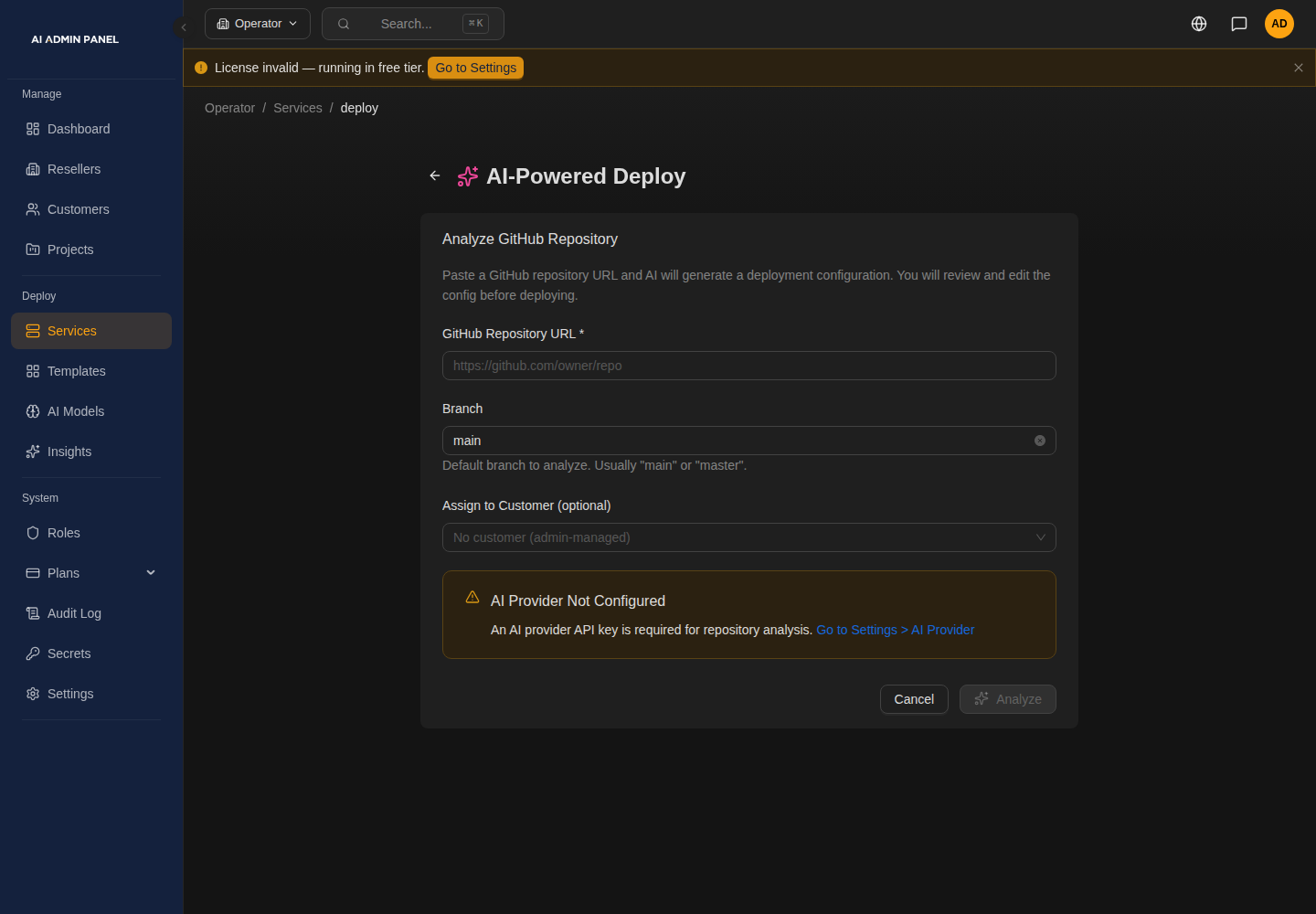
AI Deploy uses a language model to analyze a project and generate a Docker Compose configuration automatically. Paste a URL, review the generated config, and deploy.

Prerequisites

AI Deploy requires an AI provider to be configured in Settings > AI Provider:

ProviderConfiguration
OpenAIAPI key, model name (e.g., gpt-4o)
LiteLLMProxy URL, API key, model name
OllamaServer URL (e.g., http://ollama:11434), model name

Any OpenAI-compatible API endpoint works.

How It Works

Step 1: Provide a URL

Navigate to Deploy > AI Deploy and enter:

FieldDescription
URLGitHub repo URL, documentation link, or project website
Service NameName for the service (becomes the subdomain)
CustomerWhich customer owns this service

Compose-repo hint (AI-299)

When the typed URL points at a public GitHub repo whose root already contains a docker-compose.yml (or .yaml / compose.yml / .yaml), an info banner appears above the Analyze button:

Docker Compose detected — This repo ships its own docker-compose.yml. AI Deploy is designed for single-Dockerfile repos. For multi-service compose layouts, the Docker Compose deploy path uses your file directly and saves the AI analysis cost. [Switch to Compose Deploy]

Click the switch link to jump straight to Deploy > Docker Compose with your customer assignment preserved. AI Deploy will still let you proceed if you want to try the analyzer-generated config — the banner is informational, not a block.

The check runs only for public repos (it uses GitHub's unauthenticated Contents API). For private repos, rate-limited IPs, or non-GitHub URLs no banner appears — the analyzer will still run and may surface the compose during its scan.

Step 2: AI Analysis

The panel sends the URL to the configured AI model, which:

  1. Fetches and reads the repository README, Dockerfile, compose files, and package manifests
  2. Identifies the tech stack, dependencies, and required services
  3. Generates a Docker Compose configuration with:
    • Correct base images and versions
    • Required environment variables with sensible defaults
    • Volume mounts for persistent data
    • Health check endpoints
    • Multi-service setups (e.g., app + database)
  4. Returns the configuration with an explanation of design decisions

Analysis progress streams to the UI via WebSocket so you can watch the AI's reasoning.

Step 3: Review and Edit

The generated Docker Compose configuration is displayed in an editor. You can:

  • Review the AI's explanation of why it chose specific images and settings
  • Modify environment variables, image versions, or resource limits
  • Add or remove services
  • Adjust volume mounts or networking

The editor supports YAML syntax highlighting and validation.

Step 4: Deploy

Click Deploy to build and run the repository through the git build pipeline (the same pipeline as Git Deploy):

  1. The repository is cloned and built into an image (Dockerfile if the analyzer detected one, auto-detected buildpacks otherwise)
  2. The analyzer's detected application port becomes the Traefik routing target and is injected as the PORT environment variable (Heroku/Render convention)
  3. Containers are started, health checks are monitored
  4. SSL certificates are provisioned automatically

The compose configuration shown on the Review step documents what the analyzer found — the deploy itself builds from source, so repositories without any prebuilt image work out of the box.

Use Cases

AI Deploy works well for:

  • Unknown projects — paste a GitHub URL and let AI figure out how to run it
  • Quick prototyping — get a service running without reading deployment docs
  • Complex stacks — AI handles multi-service setups (app, database, cache, worker)
  • Documentation links — paste a project's install docs and AI extracts the deployment steps

Limitations

  • AI-generated configurations should always be reviewed before deploying
  • Quality depends on the AI model — larger models produce better results
  • Private repositories require the Git Deploy method instead
  • Very new or niche projects may not be well-known to the AI model
  • The AI does not have access to the repository's actual source code beyond what is publicly readable

Fallback

If the AI-generated configuration does not work:

  1. Check the container logs for errors
  2. Edit the generated compose file in the service settings
  3. Use Git Deploy or Compose Deploy for more control