How AI works in AI Admin Panel
The panel has separate AI configuration for its own tools and for deployed apps. Choose the right source before changing a key.
| Surface | Configuration and purpose |
|---|---|
| Panel AI | Settings → AI → AI Providers; used by the panel assistant (AI chat) and optional Git repository analysis |
| Provider AI | Operator's own provider key; used by the operator's own apps and as a repository-analysis fallback only when Panel AI is genuinely unconfigured; never injected into a customer's app |
| Local AI | Bundled Ollama engine; LiteLLM provides an OpenAI-compatible gateway |
| BYOK | Customer's stored provider account, when the capability and chosen usage preference allow it |
| Metered AI | Customer gateway key with configured budget/rate limits and usage reporting |
Which key a customer's app gets. The operator's Provider AI key never goes into a customer's container, where the customer could read it and spend it without any metering (AI-1434). An app deployed for a customer gets, in this order: the customer's own key (BYOK, when that capability is on, a key is stored and they chose to use it for deployments) or a metered gateway key (when metered AI is on; local models are reached through it). If neither applies, an app on the automatic source is deployed without an AI key (it does not fall back to the bundled Local AI) and the deploy progress says "AI is not available on this customer's plan". The deploy form hides Provider AI. When Local AI is switched on, the form offers it (it uses the bundled engine and no operator credential); only when it is not does the form show that same note. Turn on metered AI for the customer, or let them add their own key, then redeploy.
A customer key does not configure Panel AI. If analysis or chat fails, check the Panel AI provider, endpoint, key and model, then test an actual request. A saved configuration or successful connection check does not prove every model call will succeed.
The AI Providers page
Settings → AI → AI Providers decides where the panel and deployed AI apps get their model from. Each app picks its source when it is deployed: Provider AI, Local AI or its own key. API keys are encrypted at rest and never sent back to the browser; a blank key field keeps the stored key.
- AI sources. Each AI app picks one of these sources at deploy. Apps that support injection get the source automatically; for the others, the app's page shows where to point them.
- Local AI runs a model on your own server. No data leaves the server and no provider key is needed. Only apps that support a local endpoint can use it. A key configured further down the page takes precedence over Local AI.
- Use the same provider for the panel and for apps. On by default: one key powers the panel's AI features and is offered to apps at deploy. Turn it off to use two different providers or keys.
- Panel AI is used by AI Deploy's repository analysis and the assistant.
- Provider AI is the source customers' apps can pick at deploy (Hermes, OpenClaw, workspaces and others). Your host can set it up during the install; the card then shows Configured.
- AI Provider Routing shows a switch once you have deployed an Ollama template. When on, the panel's AI features (chat, analysis) use your deployed Ollama instead of the bundled one.
- Assistant chat history. How many days a chat is kept after its last message (default 90, from 1 to 3650). A daily job deletes older chats with all their messages; see AI chat.
The page opens with Ways to run the Assistant; see AI chat.
Customer capabilities
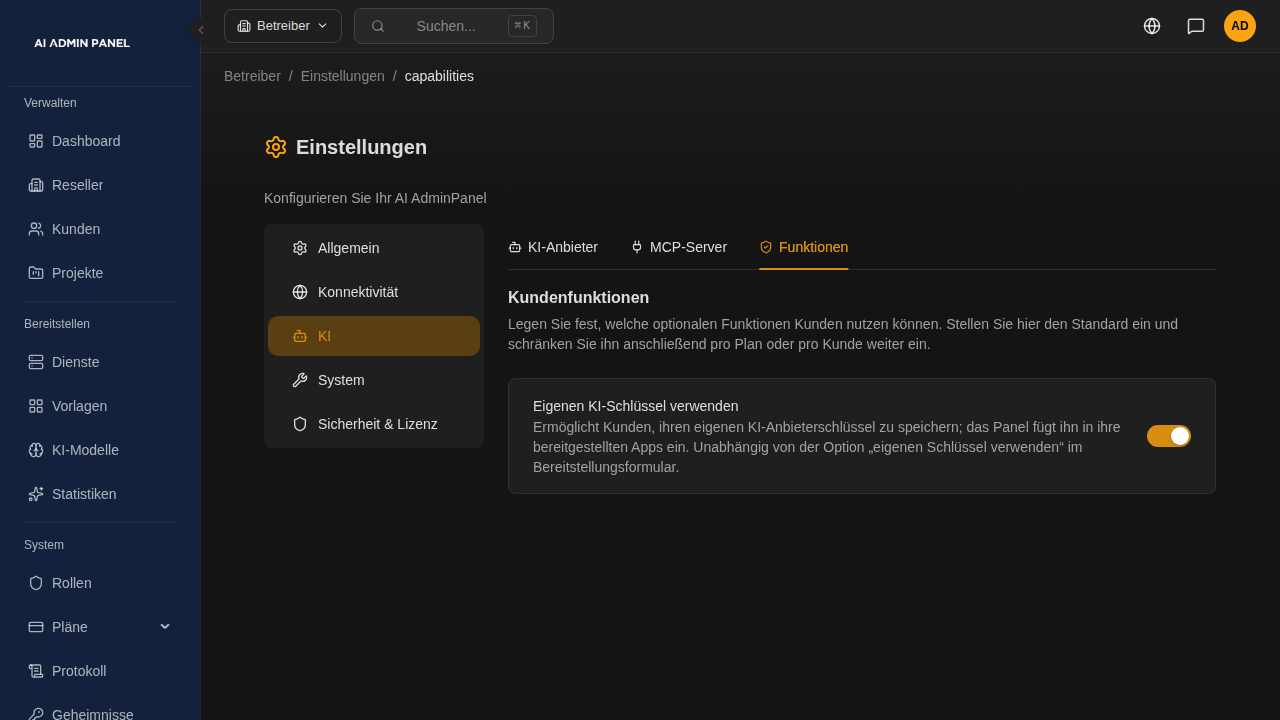
Settings → AI → Capabilities sets which optional features customers can use. Set the default here, then narrow it per plan or per customer. Absent settings default off, and a globally disabled capability cannot be enabled for one customer.
| Capability | What it allows |
|---|---|
| Bring your own AI key | Customers store their own AI provider key, and the panel injects it into their deployed apps. This is independent of the deploy form's "bring your own key" option, which sets a key for one app. See Bring your own AI key. |
| Metered AI usage | Customers use the panel's built-in AI provider under a monthly budget and token and request rate limits you control, instead of bringing their own key. See Metered AI. |
| Programmatic API keys | Customers create API keys that call the panel API for their organization. Keys stop working the moment this is turned off. See API keys. |
| MCP tenant access | Customers create MCP tokens so an AI agent or MCP client can list and control only their own services. Tokens stop working the moment this is turned off. See Tenant MCP. |
Approving assistant actions
The panel assistant has the same tools as the admin MCP server, with the same permission, licence and audit checks. It can read freely: listing services, checking health or reading the audit log runs at once. Anything that changes something (for example start, stop, restart, redeploy or delete a service, set an environment variable, add or remove a custom domain, deploy a template or a repository, run a backup, analyze a repository, download a model) waits for you. So does a read that contacts a server outside the panel, such as listing a Git repository's branches. Each tool's own definition says whether it only reads and whether it contacts another server, not the AI model.
The chat then shows a card with what the panel found in its own database: the service and its customer. Delete carries a red Cannot be undone tag. Nothing runs until you click Approve. Decline tells the assistant you said no, and the conversation goes on.
- You have 5 minutes to decide. After that, or if you press Stop or lose the connection, the action does not run. A panel restart also drops any open card. Closing the chat panel only hides it: a waiting card can still be approved when you open the chat again.
- An approval runs exactly the call shown on its card, once, and only for you in that chat. One approval covers one change, so the assistant does not offer "restart all services"; it asks for each service on its own.
- After an approved change to a service runs, the panel re-checks that service's status and health for up to about 20 seconds and shows the result on the card. The assistant gets the same result.
- If the same step fails twice in one message with the same error, the panel stops the message instead of letting the assistant try again.
- Restoring or deleting a backup, deleting a backup schedule or a plan, and removing a project member ask every time. AI agents over MCP get them too, but each call waits until a platform administrator approves it on the Approvals page. Actions that give a person access or create or show a secret are never offered (AI-2118, see Actions that always ask).
- Every decision is in Audit Log as
chat.tool_call, with you as actor: approved (and whether it succeeded), declined, expired or cancelled, with the approval's id. Reads the assistant ran on its own are there too, asauto. Environment variable values are never written to the audit log.
The panel, not the AI model, decides which actions need approval, so wording in a customer name or a model's answer cannot skip the card.
What each assistant answer costs
Under every assistant answer a small grey line shows what it used, for example 2,140 in · 186 out · ≈ $0.0024 · gpt-5.4-mini. "In" is the tokens sent to the model (your question, the conversation so far and the tool list), "out" is the tokens it wrote. When the assistant ran tools first, the line covers every step of that answer. At the bottom of the chat, This chat adds up all its answers. When some answers have no price or no token counts, the total says it covers only "the priced replies" or "the replies with token counts".
The cost is an estimate from the provider's public list price, which the panel copied on 3 November 2026 for the Anthropic and OpenAI models it knows. Your provider's bill is the final word: discounts, caching and price changes are not included. The line says so when it cannot estimate:
- price unknown for <model>: the panel has no list price for that model (OpenRouter models, and new or custom models), so it shows tokens only. It never guesses a price.
- local model, no provider charge: a model on your own server (Ollama). The tokens are counted; nobody bills for them.
- <model> reported no token usage: the provider sent no token counts for that answer, or for one of its steps, so the panel shows no numbers at all. When only some steps were counted, the panel keeps those counts as a lower bound in the usage log and the history, but never puts a price on them.
"Suggest fixes" in Check before deploy writes one ai_deploy_suggest entry per call in the same way.
Every answer is also written to the panel's AI usage log as an ai_chat entry for the operator. The entry names the model and records whether the provider reported token counts. It holds the counts it has and an estimated cost when one is known. It is the panel's own spend, so it never counts against a customer's plan quota or AI budget.
The numbers are stored with each answer, so the Assistant page shows them again when you reopen a chat, and GET /api/v1/chat/sessions/{id}/messages returns them with the chat history (your own chats only) for any client that reloads it.
The AI Models page
AI Models in the sidebar shows every AI this panel uses. It opens on the Servers tab:
- The request path at the top: apps and agents call one address, the AI gateway on this server checks each customer key against the models on that customer's plan, and Where models run counts the servers, AI engines, cloud providers, GPUs and the models loaded right now.
- One card per server. Today that is this panel host. The card shows CPU, memory, disk and each GPU with how full they are (No data yet until the first measurement), then every AI engine on it. Each engine says Shared (every customer's plan can use it) or <customer> only (a dedicated engine), its p95 answer time and how many health checks it answered in 24 hours, and its models: a green dot means loaded in memory, a grey dot installed on disk. An engine that does not answer says Not answering. The bundled engine on a fresh install says Not started instead (see The local AI engine starts on demand).
- Open server lists each engine's models with Pull Model, remove and Telemetry (the engine's latency and GPU history). Close hides it again.
- Cloud AI providers lists Panel AI (runs the Assistant and the AI check when you deploy from Git) and Provider AI (the cloud AI your own apps can use at deploy). Each shows the provider, the model and Connected or Not set up. A key is never shown. Manage in Settings opens Settings → AI → AI Providers to change them.
The Who can use what tab shows every customer plan against every model: which plans allow which models, read-only, with Edit opening the plan in the plan editor. Platform administrators with the plan-edit permission see it. See AI models per plan.
The page does not yet show how many calls the gateway handled or refused, and remote AI servers cannot be connected yet; both come in later releases.
Customers' own keys (see Bring your own AI key) belong to each customer and are not listed on this page.
AI servers in the API
GET /api/v1/ai/servers (and the admin MCP tool list_ai_servers) lists the servers that run AI for the panel. Each server has its hardware (CPU cores and use, memory, disk, GPUs with their memory) and its AI engines. Each engine says whether it is shared by every customer or dedicated to one customer, and lists its models with loaded (in memory now) or on disk only.
A figure the panel could not read is null, never 0: a GPU found only through the PCI fallback has no utilisation or memory reading, an unreadable memory or disk total is null (and so is its use), and when an engine lists its models but not which are in memory, loaded_known is false and each model's loaded is null. The page shows these as No data yet and Loaded state unknown. Engines are read at the same time, slow host tools have their own deadlines, and one hardware sample serves requests for 20 seconds, so a stuck GPU tool cannot hold the page.
Today the list always has one server: this panel host, with the id local. When remote AI servers can be connected, they appear as more entries in the same list, so treat every id as an opaque string. Only platform administrators can call it, because it shows the host's hardware and which customer owns a dedicated engine; resellers and customers get not found.
Local models and deployed apps
The bundled Local AI appears as a service, but it is part of the panel: its page has no Remove, and the API, the assistant and MCP refuse removing it, because the panel's metered AI and every app on the Local AI source depend on it.
The installer attempts to pull a bundled model, when the local AI engine was started at install (see below), and selects a smaller model on lower-memory hosts. Inspect the install result and AI Models page; a model choice does not guarantee enough memory, a completed download or a working answer. On a smaller host the gateway name stays deepseek-r1 (the panel's default model name) and routes to llama3.2:3b. The customer portal names the model that answers and lists it once (AI models per plan).
The local AI engine starts on demand
A new installation does not download or start the bundled Ollama. Its image is about 8.5 GB, two thirds of everything an install downloads, and the panel has no local model until you pull one. Cloud providers and the AI gateway work without it.
On AI Models, the engine says Not started. Open server still shows Pull Model. The first pull does three things, all shown in the dialog:
- It downloads the local AI engine, with a progress bar.
- It starts the engine.
- It pulls the model.
When the engine cannot start, the dialog says why: the download failed (check internet access and free disk space), the host updater did not answer (check that aap-updater.path is enabled: systemctl status aap-updater.path), or the engine did not start (the reason from Docker is shown below the message).
How it starts: the panel downloads the pinned image itself, through the same Docker connection it uses for every app image. It then asks the host updater, the systemd unit that already applies updates, to start the engine. The request names nothing: the updater adds COMPOSE_PROFILES=ollama to .env (after a backup) and runs docker compose up -d ollama from its own Compose file. From then on, updates keep the engine like any other service.
Until the engine is started, nothing asks it for anything: the health checks skip it, the server card does not count it as down, and an Assistant whose Panel AI provider is the bundled Ollama says The local AI engine is not started yet instead of could not be reached.
A server where the engine already runs keeps it: the installer and the updater add COMPOSE_PROFILES=ollama to .env when they find the container. To start it at install instead, set AAP_INSTALL_OLLAMA=true (see Environment Variables).
Memory limit of the bundled model engine
The bundled Ollama runs under a hard memory limit, so a model can never take the whole server down. Swap is not added on top of the limit. When a model does not fit, only the engine's own runner is stopped and that chat request fails; the panel, sign-in and customer apps keep running. If the whole server runs out of memory, the kernel stops the model engine first and spares the panel, PostgreSQL, Keycloak, Traefik and OpenBao. The engine answers one request at a time and keeps one model loaded. A model is unloaded after 30 minutes without requests; the next request loads it again, which takes a few seconds.
The installer sizes the limit from the server's memory and writes it to /opt/aiadminpanel/.env as OLLAMA_MEM_LIMIT:
| Server memory | OLLAMA_MEM_LIMIT |
|---|---|
| Formula | half the RAM, but at most RAM minus 3 GB, and at least 1 GB |
| 8 GB class (7.3 GB usable) | about 3.7 GB |
| 16 GB | about 8 GB |
| 32 GB | about 16 GB |
The 3 GB stays free for the panel's own services and the kernel. The rest stays free for customer apps. An update adds the line to an older .env, and a value you set yourself is kept. Without the line, the limit is 3 GB.
Pull Model refuses a model whose download plus about 1 GB of working memory does not fit the limit. It stops as soon as the size is known, and the dialog names both sizes. On a server where the engine has a GPU, Pull Model does not refuse on this limit: the model sits in video memory, not in the server's RAM. The installer only pulls the model it chose for the server when that model fits.
To change the limit, edit OLLAMA_MEM_LIMIT (for example OLLAMA_MEM_LIMIT=6000m), then recreate the engine:
cd /opt/aiadminpanel
docker compose up -d --no-deps ollama
When an app is deployed with the Local AI source, the panel points it at the bundled Ollama directly and, for apps that need a model name (OpenClaw, Hermes Agent), hands it the name of a model Ollama has installed. That is the model the installer downloaded, recorded as AAP_LOCAL_AI_MODEL in /opt/aiadminpanel/.env. If that model is no longer installed, or the server was installed with v2.13.0 or earlier and has no such line, the panel uses a model that is installed: the only one, or the first by name when there are several. If Ollama has no model at all or does not answer, the deploy is refused with a message to download a model on the AI Models page; nothing is created.
v2.13.0 handed these apps the fixed name llama3.2, which the installer never downloads, so the first chat message failed with "model not found". After updating, press Redeploy on a service deployed that way. Without the update, download llama3.2 on the AI Models page or redeploy with "Bring your own key".
Templates that declare aiInjection map the selected source to the environment variables the app expects. Templates without that mapping require in-app configuration. A few apps cannot start without a model at all (Hindsight): for those, "Configure later" is not offered, and a deploy that would leave the app with no AI source is refused before anything is created, with a message to choose Local AI, metered AI or your own key. Review the selected template's instructions and actual app access. The catalog's AI Agents and AI Models & Services pages distinguish source availability from a successful deployment.
Bring your own AI key
Enable BYOK globally in Settings → AI → Capabilities, include it on the customer plan and use a customer override where needed. Resolution requires an active plan, then checks the global switch, customer override and plan default. Absent settings default off. A globally disabled capability cannot be enabled by a customer override.
On the portal AI page, the customer saves provider details and explicitly chooses whether compatible deployed apps use My key or My provider's key. The account-level preference is separate from the per-deploy BYOK option.
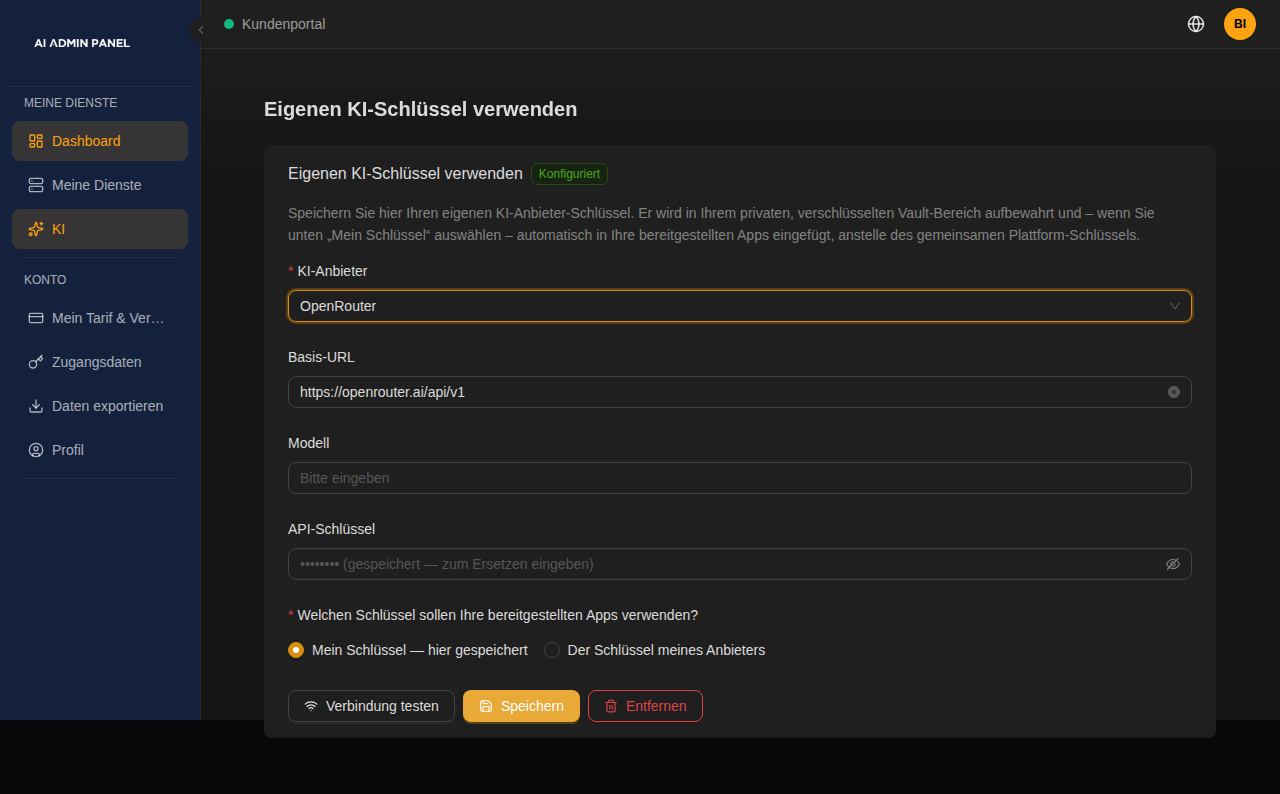
Test connection on that page connects to public internet addresses only. The panel makes the connection itself, from its own network, so a provider URL that is, or resolves to, a loopback, private, link-local or Tailscale address is refused and redirects are not followed. Such a URL (a customer's own Ollama reachable only from this server, or the form's default http://localhost:11434/v1) can still be saved and is still handed to the customer's apps; only the test fails for it, and the failure message does not say why. On a server that reaches the internet only through an HTTP proxy the customer test fails for every provider. The operator's test in Settings → AI is not restricted.
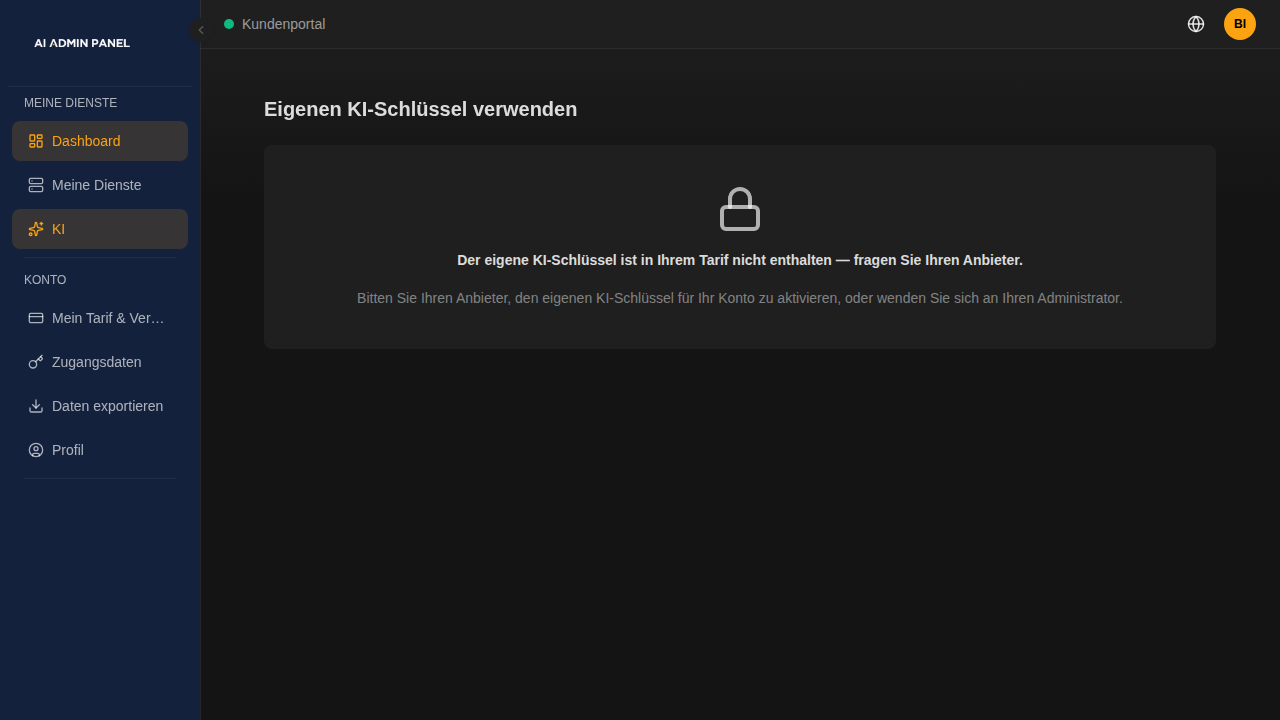
A locked capability card explains when access is unavailable.
The provider form does not echo the saved key; a blank field preserves it. This is a property of that form, not a claim that authorized Secrets reveal is impossible. Keys can be vault-backed or use legacy encrypted-column fallback; see Secrets Manager. Container environments contain resolved values and are visible to administrators with host/Docker access.
Metered AI (sell your own AI)
Enable Metered AI, set plan/customer budget and rate limits, and let the customer create a gateway key from the portal AI page. Compatible apps can use that key for the gateway, and the portal reports imported spend. The configured gateway pricing and budget are usage controls; the panel does not collect the customer's payment.
For external OpenAI-compatible access, configure DNS for ai.<your-domain> and verify HTTPS at the gateway's /v1 endpoint. Usage import is asynchronous, so a spend display is not a real-time invoice.
Each customer plan can also limit which models its customers may call and list through the gateway; see AI models per plan. The plan's budget and rate limits apply to every allowed model.
What a customer's gateway key can reach. Only the OpenAI-compatible AI API: chat and text completions, embeddings, images, audio, the model list (/v1/models), one model by name (/v1/models/<name>) and model info (/v1/model/info). The gateway's key, user, team and spend administration answers 403 to a customer key, so a customer cannot create extra keys, change a key's models or budget, or read other usage. Keys that existed before this change are restricted by the panel's gateway sync within five minutes of the update; nothing needs to be done by hand.
Suspension and deletion. When metered AI turns off for a customer (suspension, billing hold, or the plan or customer setting), the panel blocks every gateway key of that customer within five minutes, also keys the panel did not create. Turning it back on unblocks the customer's portal key only. Deleting a customer deletes its gateway user and all of its keys.
Two limitations matter when offering the service:
- The shared operator/local source remains available to deployments using that source; enabling Metered AI does not make all existing AI traffic billable.
- Native-Ollama template injection can reach the engine directly, bypassing the OpenAI-compatible metering gateway.
Review the source and application protocol before promising budget coverage. Existing installations may need gateway database/configuration changes; a panel image update alone does not perform them. Have the hosting administrator apply the release's upgrade procedure with backups, then verify gateway access and usage before enabling customer billing. Keep database and provider keys out of commands copied into logs or tickets.
The customer's Your AI page
The portal AI page is titled Your AI. Three boxes come before the customer's own-key form:
- This month: the customer's gateway spend this calendar month, in US dollars (shown as
USD; the gateway prices calls in dollars). When the plan sets a budget, a ring shows how much of it is used, with a warning at 80 % and at 100 %. When the plan sets none, the page shows the spend alone and says so; it never shows a budget the plan does not have. There is no per-model breakdown yet. - Connect an app or agent: the address (
https://ai.<your-domain>/v1), the customer's key and the model name to use. The key stays masked until the customer presses Show or Copy; both use the audited key reveal, so each one is in the audit log, and a reveal whose audit record cannot be saved shows nothing. New key replaces the key and Remove key deletes it; either way the old key stops at once. Apps the panel deployed for the customer keep the old key and are not updated, so their AI stops until they are set up again; both confirmations say so. Show, Copy, New key and Remove key appear only for logins whose role may manage the organization's keys (secrets.manage, the permission the server checks); other roles see the masked key and a note. Try it gives acurlcommand and the three fields apps such as n8n or OpenClaw ask for (base URL, API key, model). The examples always sayYOUR_KEY, never the real key. - Models you can use: the models of the customer's plan; see AI models per plan. Use this model on a gateway model fills the connect box.
When metered AI is off for the customer, the first two boxes are replaced by the usual locked message, and no model offers Use this model. Customers cannot ask for a new model from this page yet.