Deploy your own app
Services → Deploy Service offers two ways to deploy: Template Catalog first, for a ready-made app, and Deploy your own app, for your own code or your own Compose file. Deploy your own app is one form with one field. Paste a Git repository URL or a Docker Compose file into it; the form tells which one you gave it and shows the matching fields.
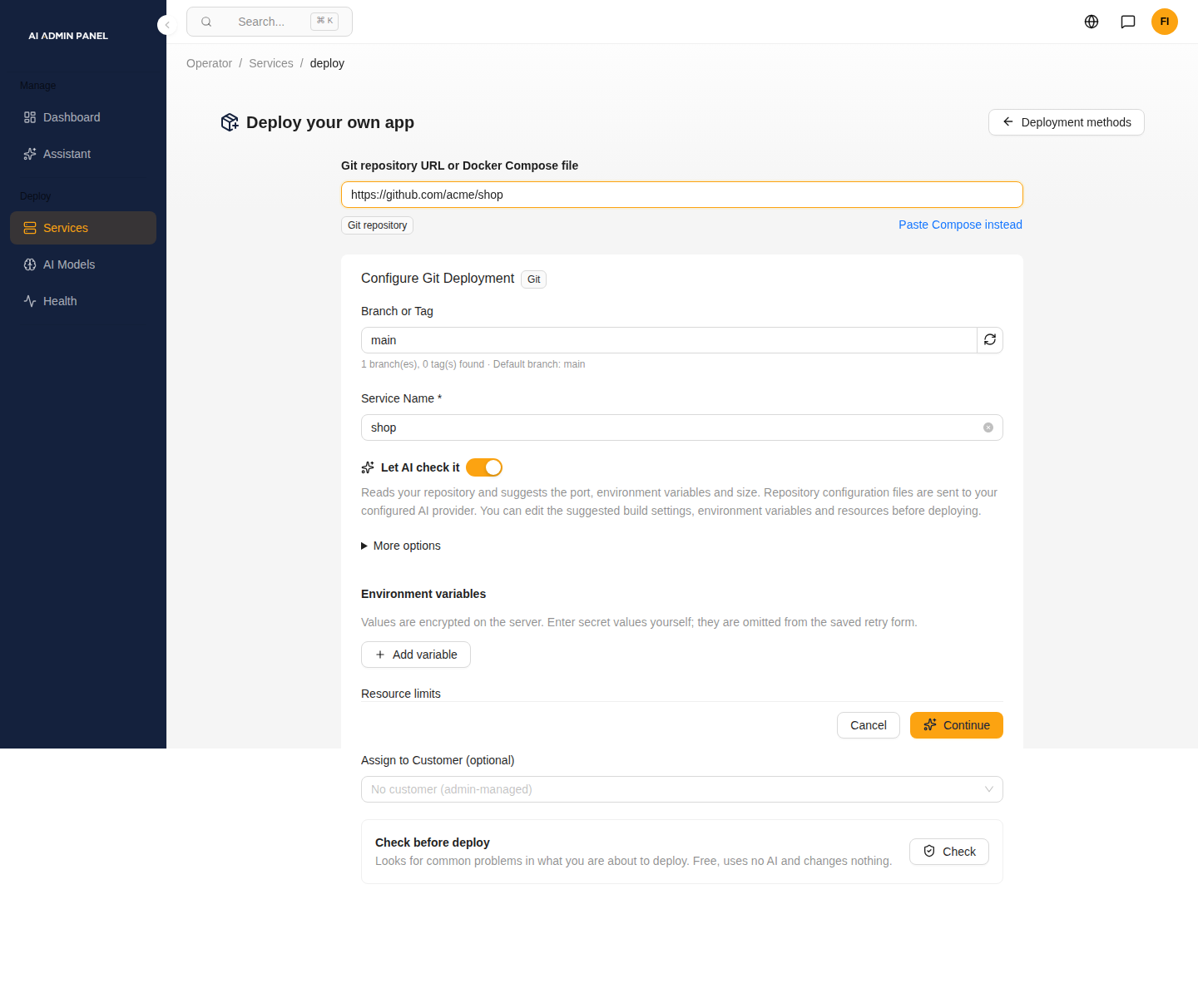
How the form tells a URL from a Compose file
The form looks only at the shape of the text, never at what the repository holds:
| You paste | The form shows | Deploys through |
|---|---|---|
One line starting with https://, http://, ssh://, git@host: or github: | Git repository | POST /api/v1/services/git |
Text with a top-level services: key | Docker Compose | POST /api/v1/services |
One line that is not an address, such as myapp | "Enter a full URL, like https://github.com/you/app" | nothing; Deploy stays off |
Several lines without a top-level services: key | "This doesn't look like a Git URL or a Compose file. A Compose file needs a top-level services: key." | nothing; Deploy stays off |
A Compose file with a mistake in it is still a Compose file: the server's validation and Check before deploy say what is wrong.
Paste Compose instead turns the field into a Compose editor before you paste, with an example. Use a Git URL instead turns it back. The service name, customer and size stay when the form switches between the two.
These addresses open the form ready for one kind:
/services/deploy/app?source=composeopens it in Compose mode./services/deploy/app?source=git&ai=1opens it for a Git URL with Let AI check it on.?customerId=<id>assigns the new service to that customer.
A Git repository URL
Enter the repository URL, then pick the branch or tag, the service name, the customer and the size. More options contains the editable description, build method, start command, Dockerfile path, build context, build stage, application port and deploy key. The form offers automatic detection, Dockerfile and Railpack. The application port also supplies the container's PORT environment variable.
The panel works out how to build the repository; see Automatic build detection. A repository with its own Compose file is built from it: when the repository has a docker-compose.yml (or compose.yml), the form says so under the field, and the panel builds and runs the repository's Compose file. You do not need to switch to Compose mode for that; Compose mode is for a Compose file you paste.
Published ports are not opened. Most Compose files publish a port, for example ports: ["8081:80"]. The panel reads that as "this service listens on port 80": the app gets a web address that sends traffic to port 80, and port 8081 on the server stays closed. The deploy's log says so for each port. The web address goes to a service that published a port, never to a database or cache next to it. A port published on 127.0.0.1 only is neither opened nor given an address.
Private GitHub repositories: set up Connect GitHub first. Once a GitHub account is connected, platform admins choose From GitHub above the field and pick the account, repository and branch instead of entering a URL; see Deploy a repository from a connected account.
Let AI check it
Let AI check it is optional and on by default when AI is configured and enabled. It reads your repository and suggests the port, environment variables and size. Choose Continue to review the suggested build method, port, environment variables, resources and notes. Suggestions remain editable; your manual choices take precedence. Back keeps the fields, Re-analyze requests another check, and Deploy from Git starts the build. Turn the switch off to deploy at once. An unavailable or failed AI check can be skipped: you can always continue with manual deployment. The switch is off for a pasted Compose file.
The AI writes its notes in the panel's language (German, French, Spanish, Italian, Chinese or Arabic; English otherwise). Technical names such as env_file, MONGO_URI or a service name stay as they are. A check of the same commit is cached for 7 days and keeps the language it was written in, so a person using another language sees those notes as first written until the commit changes or the cache expires. The AI check is for panel staff: a reseller's staff see the switch off with "AI checks are not available for your account" and deploy without it.
Problems found before deploy
The check also looks at the cloned repository itself, without the AI, for setups that are known to fail or look broken once deployed. It lists them at the top of the results under Problems found before deploy. A red message means the deploy will fail or the app will look broken. An orange message means the deploy may work but is heavier than it needs to be. The messages do not block Deploy from Git.
| Message | What the panel found | What to do |
|---|---|---|
| Loads variables from env files (red) | The repository's Compose file uses env_file. The panel does not read env files from a repository, so the deploy fails. | Click Build without env files (below), or remove env_file from the Compose file and enter the variables under Environment variables. |
| Listed in .gitignore (red) | An env file named by env_file, often .env, is in .gitignore, so a clone never has it. | Enter its values under Environment variables. |
| Builds the site for a sub-path (red) | A static site built for GitHub Pages: Next.js basePath, Vite base, or a homepage on github.io in package.json. The panel serves the app at the root of its domain, so the CSS and JavaScript return 404. | Set the path to empty (or /) in the repository, then deploy. |
| Starts many services (orange) | The Compose file has more than eight services. | Click Choose services (below), or check that you need all of them; each one is built or pulled and runs on this server. |
| Includes a monitoring stack (orange) | Prometheus, Grafana, Alertmanager, Loki, exporters and similar. | Click Choose services (below), or remove them from the Compose file unless you need them; they use memory and disk. |
Fixes the panel can apply
Two of these problems have a fix you can accept in the form, without changing the repository. An accepted fix is stored with the app and applied on every build: the first deploy, Redeploy, a push (webhook or GitHub App) and a change of the Git source.
- Build without env files. The build removes every
env_filefrom the Compose file before it reads it, so no env file is ever read. Each service gets its variables from the app's Environment variables instead, which the panel gives to every container of the app. Accepting fills in the variables of the env files the repository itself holds (not gitignored ones, and nothing outside the repository); enter the rest yourself. - Choose services. Pick the Compose services to run. The services they depend on (
depends_on) run too. The monitoring stack and a reverse proxy are left out of the first suggestion. If the repository later renames or removes a chosen service, the build stops and says which one; choose again under Git source.
The Git source card on the service page shows both choices, and Edit changes them (Build without env_file, Services to run; leave the list empty to run every service). The panel has no fix for a GitHub Pages sub-path: change the setting in the repository.
The check reads only the repository root, the way the deploy does. A result saved before this check existed shows no such messages; use Re-analyze. The same list is in the API (GET /api/v1/analyze/{id}, field config.warnings, each with code, severity, params and an English message) and in the MCP tool get_repo_analysis.
Configure global Panel AI or Provider AI under Settings → AI Providers. Analysis uses Panel AI first, including configured keyless Ollama. Provider AI is used only when Panel AI is genuinely unconfigured. A configured provider's denial or outage does not switch to another provider. Customer BYOK keys configure deployed applications, not this platform-only analysis. The queued worker reads the current key; no key enters its job args. Only allowlisted repository configuration files are sent to that provider; links escaping the repository are ignored.
An analysis can list validated service names as advice. It does not execute generated YAML or silently create extra services. Older or invalid analysis results show that additional-service information is unavailable. Analysis refuses unsupported, private-network or credential-bearing repository addresses before queueing or cloning. This is the existing public-host preflight, not connection-time DNS pinning. The public Compose hint is best effort and uses the selected branch. A deploy key disables both AI analysis and the public Contents probe.
Start command
A repository without a Compose file or a Dockerfile is built with Railpack, which also picks how the app starts: for a Node.js app the start script of package.json, otherwise node <main>, where main is the file named in package.json. Some repositories point main at a file that does not exist. For example, docker/getting-started-app says "main": "index.js", but its server is src/index.js, so the app crashes with Cannot find module '/app/index.js'.
Enter the right command in More options → Start command, for example node src/index.js. Leave it empty to let Railpack choose. Let AI check it fills the field in when it finds such a case; you can change or clear the value. The command is one line of at most 1024 characters. It runs only inside the app's own container.
The panel stores the start command with the service, so Redeploy and pushes build the same way. Change it later on the service page under Git source → Edit. Service variables such as RAILPACK_START_CMD do not reach the Railpack build; use this field instead. Dockerfile and Compose builds keep their own start command and ignore this field.
Dockerfile path, build context and stage
Automatic detection builds with a Compose file first. Without one it looks for a Dockerfile at Dockerfile, dockerfile, docker/Dockerfile and docker/dockerfile, in that order, and uses the first it finds. Without any of them it builds with Railpack.
Some repositories need more. Set these under More options (they are hidden for a Railpack build):
- Dockerfile path: the Dockerfile to build, from the repository root, for example
docker/dockerfile. Setting it builds with that file even when the repository also has a Compose file. - Build context: the folder the build reads, from the repository root, for example
app. Empty means the repository root. - Build stage: the stage of a multi-stage Dockerfile to build (
docker build --target), for examplerelease. Empty builds the last stage.
Example: louislam/uptime-kuma keeps its Dockerfile at docker/dockerfile, builds from the repository root, and its server is the release stage, not the last one. Enter docker/dockerfile as the Dockerfile path and release as the build stage. Its root compose.yaml only runs the published image, so without a Dockerfile path the panel deploys that image instead of building the repository.
Paths stay inside the repository: no .., no path starting with /, and no symbolic link that leads outside the repository. A path that is missing in the repository stops the build with a message that names it. The settings are stored with the service, so Redeploy and pushes build the same way. Change them later on the service page under Git source → Edit, then press Redeploy at the top of the service page to build with them.
Environment variables
Environment variables are editable with or without AI. Secret suggestions start empty. Names must be uppercase, unique and at most 64 characters; up to 50 variables with values of at most 8 KiB are accepted. PORT, AAP_*, PANEL_* and LITELLM_* are reserved. Values are stored encrypted and never saved in browser retry history. Fix and retry restores variable names and asks for values again.
You do not have to invent passwords. A variable marked secret and required, or one whose name contains PASSWORD, SECRET, TOKEN, API_KEY, PRIVATE_KEY or CREDENTIAL, shows Generated on deploy if left empty. Leave it empty and the browser fills in 32 random letters and digits when you choose Deploy; the value is stored encrypted like a typed one. To see it later, open the service's environment variables and reveal it. Type a value instead when the application expects a fixed one: for example, a Compose file that writes postgres as the database password in two places needs postgres here too.
After deploy, a service's Environment tab shows sensitive values as ********. Saving the tab, in form or raw mode, keeps the stored value of every secret you did not change; only a value you typed replaces it. A variable is kept sensitive when you tick Secret, when its name or value looks like a secret (a password, token or key name, or a URL with a password), or when it already was. Unticking Secret never makes a stored secret readable; to store a non-secret name as plain text again, delete the variable and add it again.
When a variable cannot be sent, the row says why under it: a required value is missing, the name is invalid, reserved or used twice, or the value is too long. A non-secret required variable is never generated; it needs a value from you. For PORT the row says to remove it and enter the port in Application port instead: the panel sets PORT from that field.
The AI check only suggests variables you can deploy. It never suggests PORT, AAP_*, PANEL_* or LITELLM_* (a suggested PORT becomes the application port, and a note says what was left out), lists each name once, and marks a variable required only when it has no default. A suggested password or key is left empty and marked secret, so the panel generates it; platform placeholders such as ${AAP_PASSWORD_DB} are never copied into a value. For an app such as Metabase that runs on its built-in database, the database variables are suggestions with defaults, not values you must type.
The AI check may plan extra services, such as a db database, for its own Compose file. A Git deploy runs your repository's own Compose file when it has one and the build method is automatic; otherwise it runs one container with no other services. A variable whose default points at a service that will not run (for example MB_DB_HOST=db or REDIS_URL=redis://redis:6379) is not suggested, nor are the other variables of that service (MB_DB_*). A note starting "Needs an external database or service" names them: add them yourself with the address of an external database or service, or leave them out when the app works without it.
The notes the panel adds to the check, such as the one about PORT or about names it did not suggest, are shown in your language. Notes written by the AI model are shown as the model wrote them. The note about an external database or service is still shown in English.
Branch or tag
Once the repository URL is entered, the form reads the repository's default branch, its branches and its tags, and preselects the default branch (for example master on a repository that never renamed it). Pick another branch or tag from the list, or type a name; the list shows at most 100 branches and 100 tags. A name the repository does not have is flagged before you deploy. When the repository cannot be read, the field says why: it does not exist or is private, the address redirects, the host is not public, or the host cannot be reached. If the default remains unknown, the field stays empty: the server resolves it or asks you to enter a branch; the form does not guess main.
Private repositories and addresses the panel refuses
For a private repository, use the Deploy Key field with the repository's SSH access configuration. It is not a username/password form. Keep private keys out of repository URLs, logs and support messages. An https:// URL that carries a username or token (https://token@host/...), a query (?access_token=...) or a fragment is refused: the URL is stored and shown with the service.
The repository host must be a public address. The panel refuses private, loopback, link-local, carrier-grade NAT (100.64.0.0/10) and reserved ranges, and its git does not follow an HTTP redirect, so a repository that is only reachable through a redirect (for example from http:// to https://, or from an old host name to a new one) has to be entered under its final address.
Known limitation: SSH deploy keys. The panel stores a deploy key (encrypted) and hands it to git when it clones. The panel's git checks the server's host key strictly but has no known host keys, so a clone over SSH (git@host:... or ssh://) fails at the clone step. Until that is fixed, only repositories that can be cloned over HTTPS without credentials can be deployed.
A pasted Docker Compose file
Paste a Compose file that uses pre-built images, or choose Paste Compose instead first. Enter a service name, customer and size, then Deploy. Use a Git repository URL when the application must be built from source. The panel interprets supported Compose fields; it does not run an unrestricted docker compose up on the host. Which fields it accepts, how it picks the service to route to, and its limits are in Compose Deploy.
This minimal example routes to nginx on container port 80:
services:
  web:
    image: nginx:stable-alpine
    expose:
      - "80"
After Deploy
The panel opens the service's page at once. Its Deploy section shows each step of the deploy with its output, and then Deployed or the reason it failed. See Deploy your first service for an example.
When a deploy fails, the section shows the panel's full reason under the explanation, line by line, with secret values masked. A Compose file refused by the security rules names the setting that broke them (for example privileged mode or the Docker socket). A build that failed shows the end of the build output, where the line starting with ERROR usually names the cause.
The last step, Check it stays running, watches the app after it started: it must stay up for 10 seconds without being restarted, and pass its healthcheck if the image has one. An app that keeps crashing (for example a start command that names a file the repository does not have) fails the deploy with the reason and the last lines of its log, and the service shows error. The crashing container is kept, so Logs on the service page shows the whole output; fix the app and redeploy. A healthcheck that is still starting after 90 seconds does not fail the deploy; the service turns degraded if it fails later.
The service stays error while Docker keeps restarting the crashed container, even in the seconds it is up between two restarts. It turns running again only when the container has recovered: its healthcheck passes, or, for an image without one, it has stayed up for a minute.
If the first deploy fails before anything started, Fix and retry opens this form filled in again, in the mode you used. The browser keeps your input for that, but never secret values: environment variable values, and in a Compose file the value of every key whose name contains PASSWORD, SECRET, TOKEN or API_KEY and a password inside a URL, are left empty, and the form names the fields to fill in again.
Old addresses
The separate pages are gone. Their addresses open this form and keep the customer, the rest of the query, the # part and a saved Fix and retry form. They redirect for at least two releases:
| Old address | Opens |
|---|---|
/services/deploy/git | /services/deploy/app?source=git |
/services/deploy/compose | /services/deploy/app?source=compose |
/services/deploy/ai | /services/deploy/app?source=git&ai=1 |
The API did not change: Git Deploy and Compose Deploy describe what each kind of deploy does after you click Deploy.