First Steps
After you sign in, the Dashboard asks one question: What do you want to do first? Your answer gives you a short list of steps. Each step ticks itself when the panel sees it done, wherever you did it: on a page, through the API, with the Assistant or by a colleague. You do not tick steps yourself, except the two the panel cannot see (they are marked below).
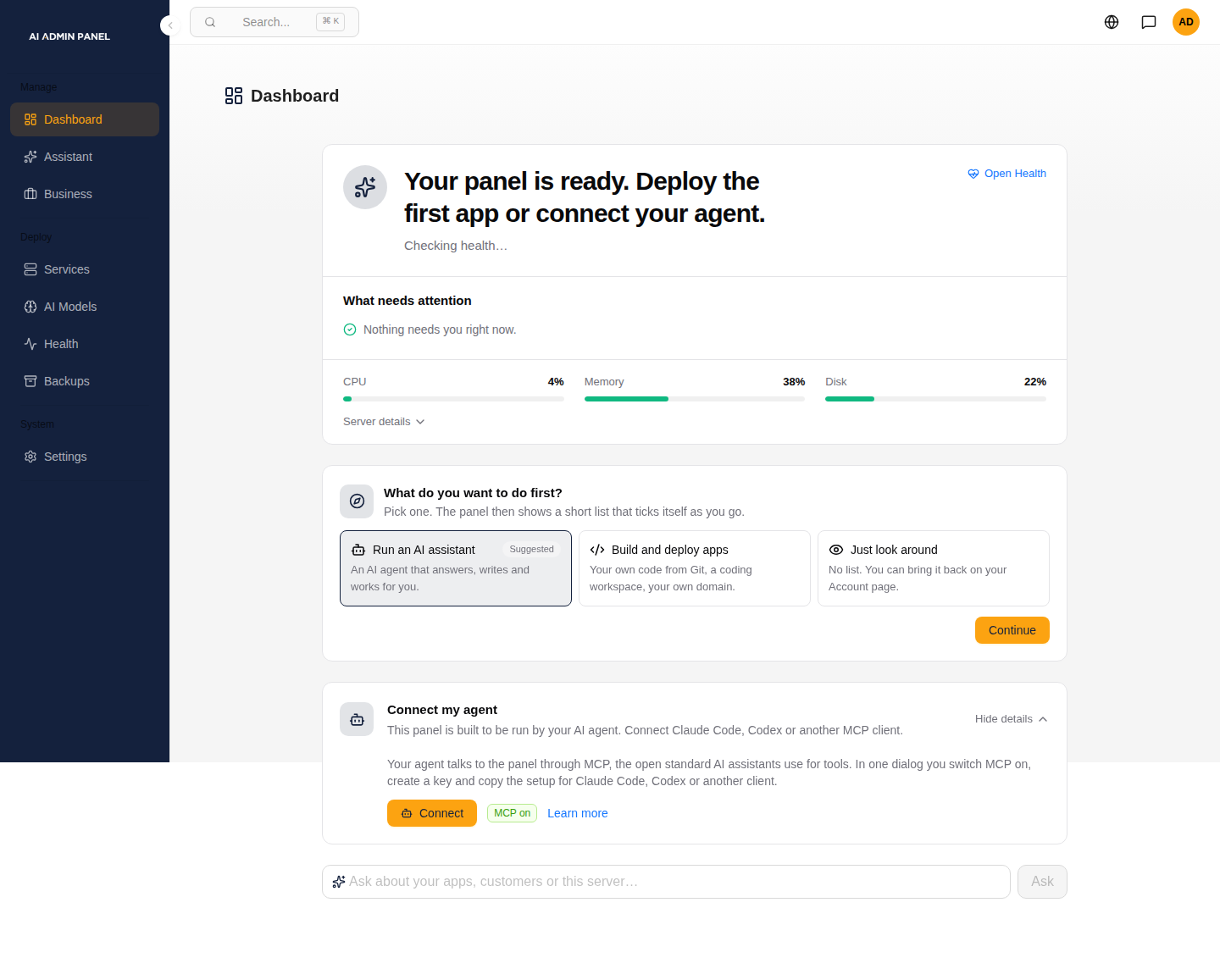
The question
| Answer | What you get |
|---|---|
| Run an AI assistant | The AI assistant list. |
| Build and deploy apps | The builder list. |
| Host apps for my customers | The hosting list. |
| Just look around | No list. The card goes away. |
The answer you gave in the setup wizard is marked Suggested and already selected: Just for my company suggests the AI assistant list, For my clients and As a hosting business suggest the hosting list, and a reseller's staff always see the hosting list suggested. You can pick any answer, except that Just for my company is never offered the hosting list. Change on the list brings the question back. On a Just for my company panel the Dashboard also leaves out the quiet Add customer link under the day's summary; the Customers page itself stays in the menu if your licence includes it. The setup wizard's answer itself can be changed later in Settings → General → How do you use the panel? (see Configuration); the suggestion follows it.
Only people who may deploy apps see the question and the list. A read-only user does not.
When someone on your team started before you, steps they already did are ticked on your list from the first time you open it. The list then says Your team already did 3 of 6 steps. Your team is the platform staff, your reseller's staff, or the people of your customer account. Your own two-factor sign-in never counts as the team's, and steps you do later count as yours.
The AI assistant list
- Panel installed (always done).
- Add an AI key: an AI provider or a local model in Settings → AI → AI Providers.
- Deploy your first agent: an app from the AI Agents category is running.
- Talk to your agent: you tick this one when you open your apps from the list.
- Turn on two-factor on your own account. While this step is on the list, the separate two-factor reminder on the dashboard stays away.
- Set up backups and run one: a backup schedule or backup policy is on for one of your apps and one backup has finished. One backup started by hand is not enough on its own.
The builder list
- Panel installed (always done).
- Connect GitHub in Settings → Connectivity → GitHub.
- Deploy an app from Git: an app deployed from a Git repository is running.
- Start a coding workspace: a workspace app (for example Claude Code or Codex) is running.
- Put an app on your own domain: a custom domain is active on one of your apps.
- Set up backups and run one: a backup schedule or backup policy is on for one of your apps and one backup has finished. One backup started by hand is not enough on its own.
The first open step has the button; the others are links. A reseller's list counts only the apps, backups and domains of its own customers.
The hosting list
For running apps for customers, as the panel's operator or as a reseller.
- Panel installed (always done).
- Brand your panel: a logo or company name is saved. The operator uses Settings → Branding; a reseller uses Account → Your customers, which saves the branding of the reseller's own organization.
- Set up email (operator): the mail server in Settings → Email is configured. A reseller cannot change the installation's mail server, so its step is Set your support contact on the Account page: the email address its customers see when they need help.
- Add a customer and invite them: a customer has a user who has signed in at least once. An invitation that was only sent does not count, and neither does a sign-in by your own staff.
- Deploy an app for a customer: an app that belongs to a customer is running.
- Set up backups and run one: a backup schedule or backup policy is on for one of your apps and one backup has finished. One backup started by hand is not enough on its own.
A reseller's list counts only its own customers. A step done by another reseller, or by a customer of another reseller, never ticks it: the panel works out the reseller from the signed-in person, not from anything the browser sends.
Below the steps, one line says Your customers see a short Getting started list. Its Change link opens the switch below.
The customer list
People who sign in to the customer portal get their own list, without a question:
- Signed in (always done).
- Turn on two-factor on their profile.
- Open your first app: ticks when they open an app from the portal dashboard.
- Connect your AI tool: an API key of their organization exists. Only shown when their plan includes MCP or API access and they may manage keys.
- Invite a colleague: their organization has a second user. Only shown when they may manage users.
Someone invited from the portal also sees who invited them, above the steps: anna@example.com invited you. when a colleague in their own organization sent the invite, or Your provider invited you. when the invite came from the provider's staff. The provider's own address is never shown to a customer. Invites sent before this was added, or by someone who has since been deleted, show no line.
Switch the customer list off
If you onboard your customers yourself, you can switch their list off.
| Who | Where | Applies to |
|---|---|---|
| The panel's operator | Settings → General → Show Getting started to customers | Customers directly under the platform, and resellers that have not set their own switch. |
| A reseller (needs organizations.update) | Account → Your customers → Show Getting started to your customers | That reseller's customers. It wins over the operator's switch. |
Switching it off hides the list for those customers at their next page load. Switching it back on shows it again, with every step they already did still ticked. The customer cannot change it.
Ask the Assistant
The Assistant knows your open steps. Ask it "What should I do next?" and it names the first one and the page for it. Two steps also show Do it with the Assistant when the panel has an AI key and you may use the Assistant: Deploy your first agent and Set up backups and run one. The link opens a new Assistant chat with that request; every change still waits for your approval. See AI chat.
Hide it, or bring it back
| Button | What happens |
|---|---|
| Hide for now | The card goes. Getting started 2/6 stays in the header; click it to open the card again. |
| Don't show again | The card and the header item go. |
| Close (all steps done) | The card says you're set up and goes for good. |
To bring the list back, open Account and turn on Show getting started.
Empty pages
A list page with nothing on it yet says why in one sentence and offers the one thing to do next:
| Page | When empty | The one action |
|---|---|---|
| Services | No app runs yet. | Browse the catalog (people who may deploy). |
| Customers | No customer yet. | Add your first customer. |
| Backups | No app runs yet, so there is nothing to back up (Overview and Restore). | Deploy an app (people who may deploy). |
| An app's Domains card | The app has no domain of your own yet. | The Add button next to the domain field. |
| GitHub | No GitHub account connected yet. | Install on a GitHub account, right above the list. |
Upgrades
When you upgrade a panel that already runs apps, the list starts hidden: you see only the Getting started header item and can open it from there. If every step is already done, the list does not show at all.
API
The list belongs to the signed-in person. The routes are personal page state, so they have no MCP tool.
| Route | What it does |
|---|---|
GET /api/v1/account/onboarding | Your answer, the suggestion, the card state and the steps. teamDone counts the steps your team did before your list was built. |
PUT /api/v1/account/onboarding | Sets intent (assistant, builder, host or none; host is refused when the persona is Just for my company and you are not a reseller) and/or state (open, collapsed, dismissed, finished). |
POST /api/v1/account/onboarding/items/{key}/done | Ticks agent_talked or app_opened. Other steps answer 409 not_manual. |
The customer list switch is organization state, so it has an API route and an MCP tool:
| Route | MCP tool | What it does |
|---|---|---|
PUT /api/v1/organizations/{id}/portal-onboarding | set_portal_onboarding | Body {"enabled": false} switches the list off for a reseller's customers. Needs organizations.update; a reseller may set only its own organization (another one answers 404). Only reseller organizations have the switch (any other answers 400). GET /api/v1/organizations/{id} shows it as portalOnboardingEnabled. |
PUT /api/v1/settings/onboarding.portal_enabled | — | The operator's switch, "true" or "false". |